
Wiki
Wiki
Battery Chargers
Battery Chargers
Sonoros can monitor battery chargers alongside your RF receivers, showing charge levels, health, and status for every bay in real time.
Adding a charger
Chargers are added through the same Manage Devices flow as RF receivers. Go to Setup > Manage Devices, click Add Device, and select your charger from the device type menu.
Once added, the charger appears in the Chargers view, accessible from the sidebar.
The Chargers view
The Chargers view represents each device as a rack unit. Each row shows a title column on the left, followed by up to four slot columns.
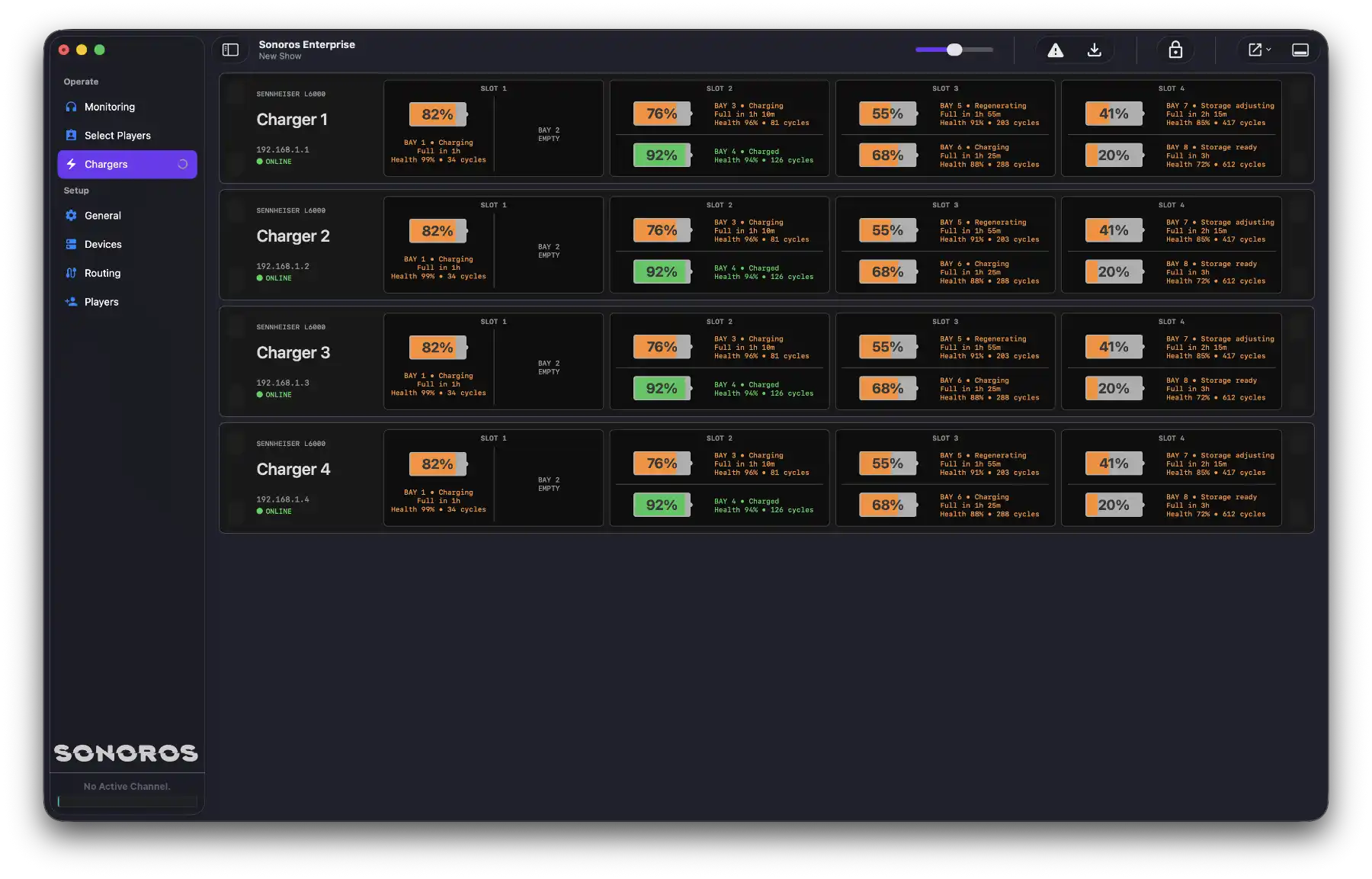
The title column shows the device name, IP address, and connection status: ONLINE (green) or OFFLINE (red).
Each slot column shows the module installed in that slot. If a slot has no module, it shows NOT INSTALLED. A hardware problem is shown as SLOT FAULT. When the device is offline, slots show STATUS UNAVAILABLE.
Each slot holds two bays. Sonoros shows a battery meter and detail text for each bay. The meter is green when charged, orange while charging or in a transitional state, and red on a fault. Faulted bays flash. Below the meter, Sonoros shows the bay number, status, health percentage, cycle count, and an estimated time to full when the battery is actively charging.
If a bay has no battery it shows BAY N EMPTY, and BAY N UNAVAILABLE when the device is offline.
Managing a charger device
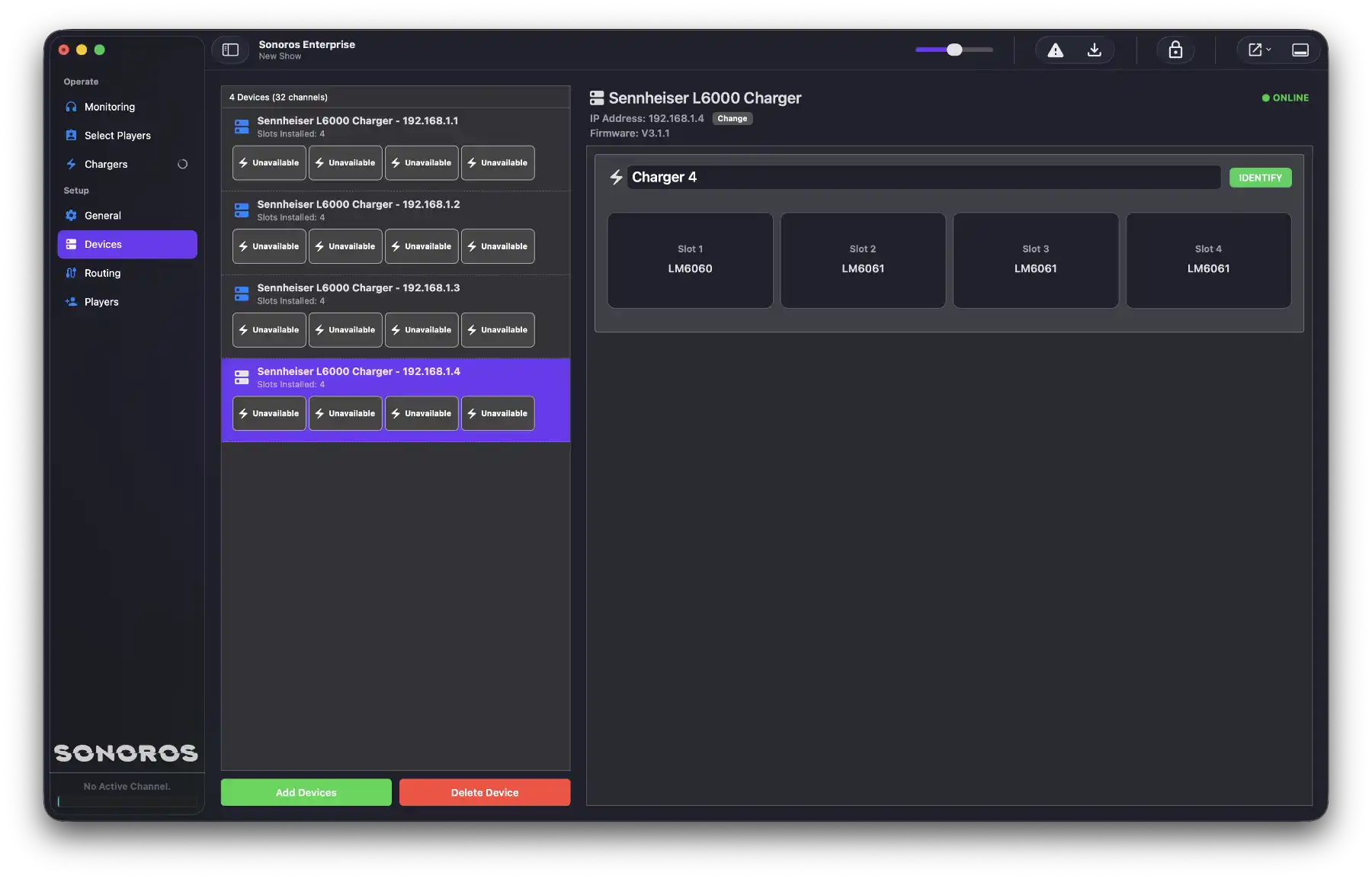
Select the device in Manage Devices to open its inspector. From there you can edit the device name and trigger an identify action on the hardware to locate it in a rack. The inspector also shows the module type installed in each slot.
Sonoros can monitor battery chargers alongside your RF receivers, showing charge levels, health, and status for every bay in real time.
Adding a charger
Chargers are added through the same Manage Devices flow as RF receivers. Go to Setup > Manage Devices, click Add Device, and select your charger from the device type menu.
Once added, the charger appears in the Chargers view, accessible from the sidebar.
The Chargers view
The Chargers view represents each device as a rack unit. Each row shows a title column on the left, followed by up to four slot columns.
The title column shows the device name, IP address, and connection status: ONLINE (green) or OFFLINE (red).
Each slot column shows the module installed in that slot. If a slot has no module, it shows NOT INSTALLED. A hardware problem is shown as SLOT FAULT. When the device is offline, slots show STATUS UNAVAILABLE.
Each slot holds two bays. Sonoros shows a battery meter and detail text for each bay. The meter is green when charged, orange while charging or in a transitional state, and red on a fault. Faulted bays flash. Below the meter, Sonoros shows the bay number, status, health percentage, cycle count, and an estimated time to full when the battery is actively charging.
If a bay has no battery it shows BAY N EMPTY, and BAY N UNAVAILABLE when the device is offline.
Managing a charger device
Select the device in Manage Devices to open its inspector. From there you can edit the device name and trigger an identify action on the hardware to locate it in a rack. The inspector also shows the module type installed in each slot.