
Wiki
Wiki
Groups
Groups
Groups organise your channels on the monitoring view. You can name them, assign a colour, and arrange them however makes sense for your show: by frequency range, by department, by instrument, by stage position.
Adding a group
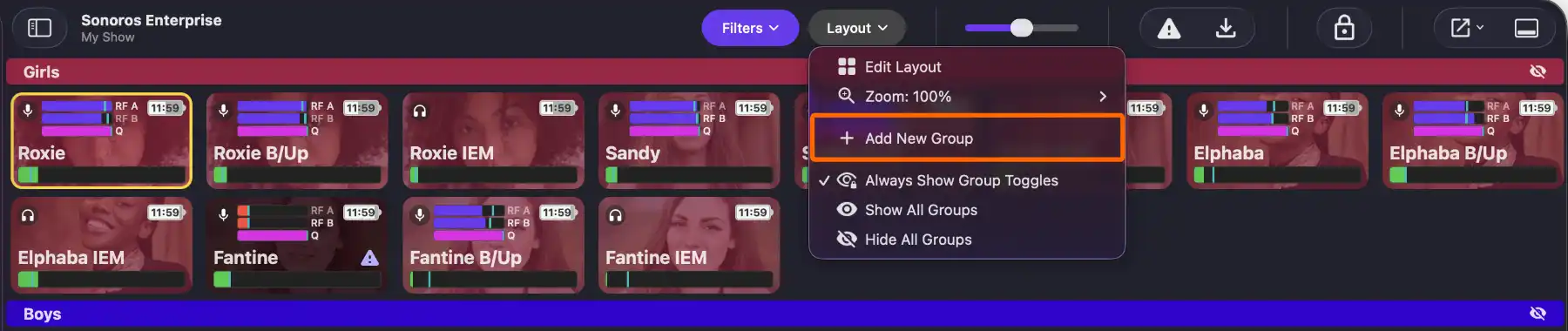
Click the Layout button in the toolbar and select Add New Group.
A window opens where you set the group name, colour, and which channels belong to it. Click Add Group and it appears on the grid.
You can also add a group from the Tools menu in the Mac menu bar.
Showing and hiding groups
Each group header has a toggle button on the right. Click it to collapse or expand that group's channels.
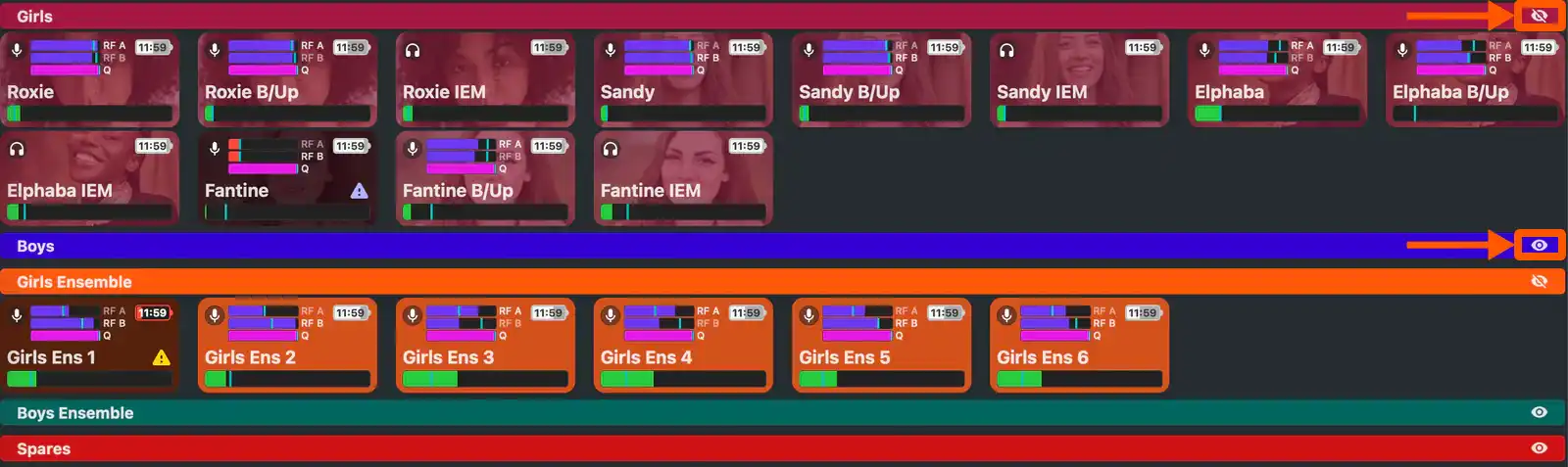
To collapse or expand all groups at once, use Show All Groups or Hide All Groups from the Layout dropdown.
By default the toggle buttons are always visible. To hide them when you're not in Edit Layout mode, uncheck Always Show Group Toggles in the Layout dropdown.
Edit Layout mode
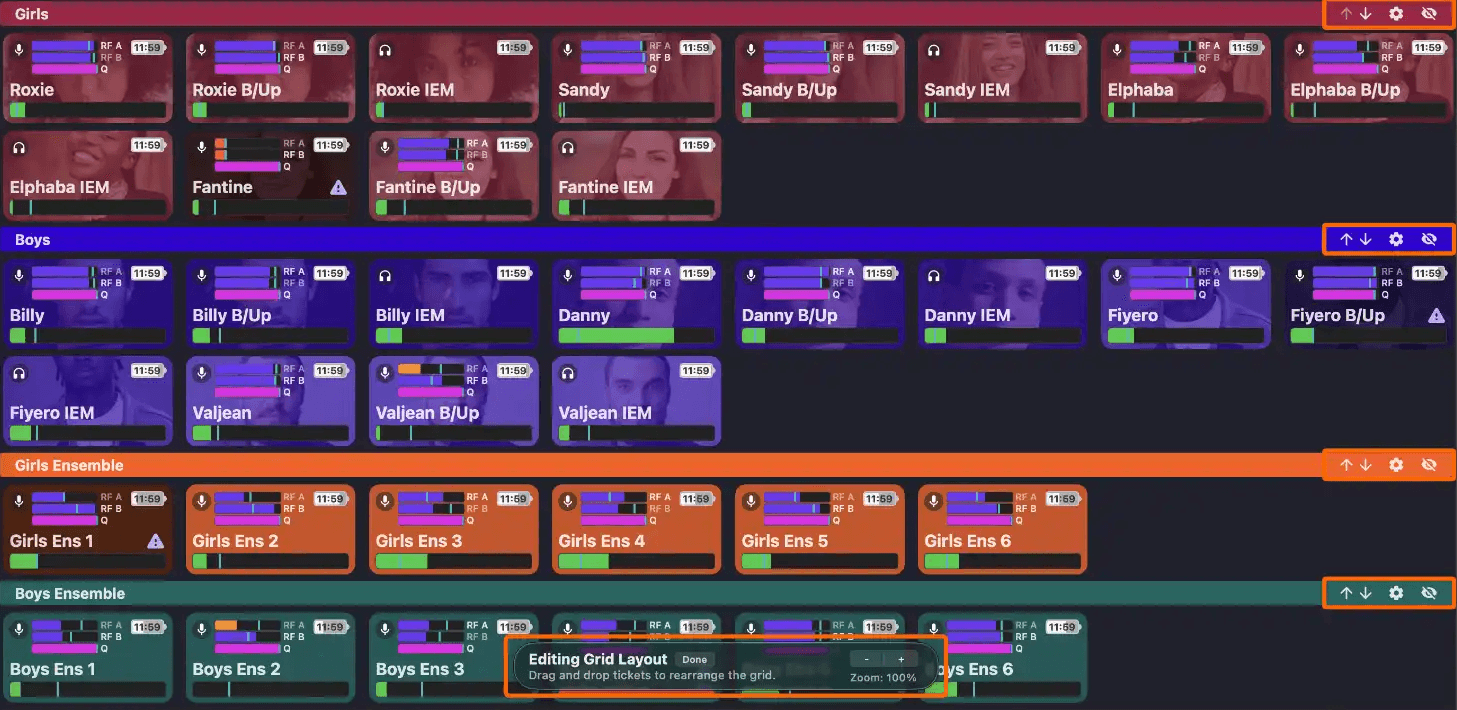
Click Layout > Edit Layout to enter layout editing mode. Click Finish Editing Layout when you're finished.
In Edit Layout mode:
Reorder groups using the up and down arrows on each group header.
Move channels between groups by dragging and dropping them. You can drag a channel into a group, out of a group, or from one group to another.
Edit or delete a group by clicking the gear icon on its header. This reopens the group settings window, which also has a delete button.
Changing a channel's group from the inspector
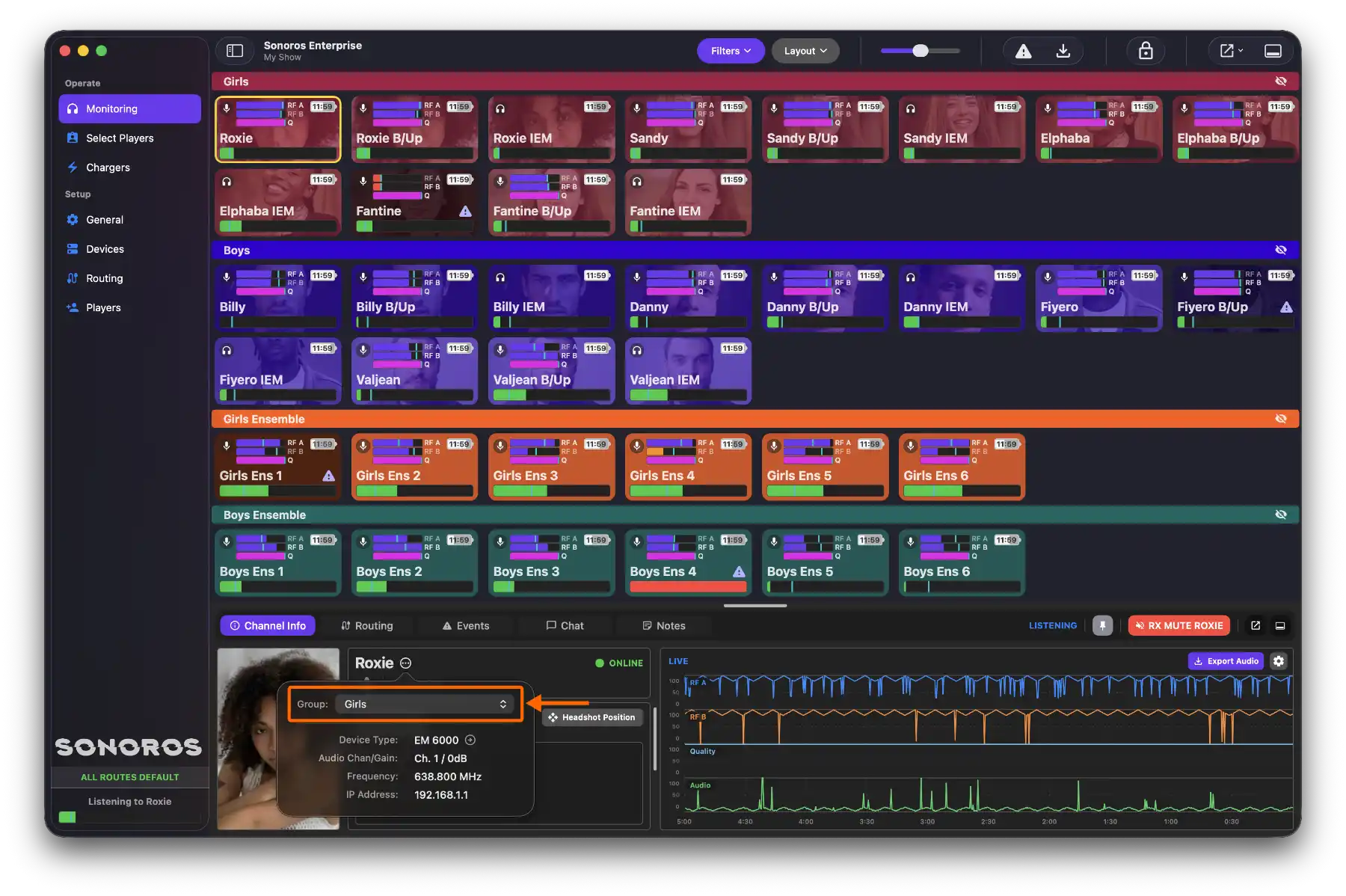
You can also move a channel into a different group from the inspector. Select a channel on the monitoring view, then click the info icon to open the popover. Use the group dropdown to reassign it.
Groups organise your channels on the monitoring view. You can name them, assign a colour, and arrange them however makes sense for your show: by frequency range, by department, by instrument, by stage position.
Adding a group
Click the Layout button in the toolbar and select Add New Group.
A window opens where you set the group name, colour, and which channels belong to it. Click Add Group and it appears on the grid.
You can also add a group from the Tools menu in the Mac menu bar.
Showing and hiding groups
Each group header has a toggle button on the right. Click it to collapse or expand that group's channels.
To collapse or expand all groups at once, use Show All Groups or Hide All Groups from the Layout dropdown.
By default the toggle buttons are always visible. To hide them when you're not in Edit Layout mode, uncheck Always Show Group Toggles in the Layout dropdown.
Edit Layout mode
Click Layout > Edit Layout to enter layout editing mode. Click Finish Editing Layout when you're finished.
In Edit Layout mode:
Reorder groups using the up and down arrows on each group header.
Move channels between groups by dragging and dropping them. You can drag a channel into a group, out of a group, or from one group to another.
Edit or delete a group by clicking the gear icon on its header. This reopens the group settings window, which also has a delete button.
Changing a channel's group from the inspector
You can also move a channel into a different group from the inspector. Select a channel on the monitoring view, then click the info icon to open the popover. Use the group dropdown to reassign it.