
Wiki
Wiki
How Does Licensing Work?
How Does Licensing Work?
Sonoros uses a subscription-based dongle licence. Your licence lives on a small USB dongle rather than being tied to a particular machine or requiring an internet connection to validate. This means Sonoros never needs to phone home to check it's still licensed, and you can move between computers or reformat without updating any keys. Just take the dongle with you.
Subscriptions are how Sonoros keeps improving. An active subscription means you always receive the latest version with the newest features and hardware support included.
Tiers
Sonoros is free to download and try with two channels. When you're ready to scale up, choose the tier that fits your production.
Amateur | Pro | Enterprise | |
|---|---|---|---|
Device / audio channels | Up to 24 | Up to 48 | Up to 256 |
Clients | 1 | Up to 3 | Unlimited |
Audio mirroring from clients | ✓ | ✓ | |
RF device support | Entry-level | Pro | All, including Sennheiser Spectera |
All tiers include free updates to future versions of Sonoros.
For Enterprise pricing, contact hello@peachy.ventures.
The dongle
The licence is stored on a small USB dongle plugged into your Sonoros server machine. You only need one dongle per Sonoros system — clients connecting to that system do not require their own dongle or licence, subject to the client limits of your tier.
Two sizes are available: Standard dongle & Mini dongle.
You can buy a dongle on its own to have one ready before you need a licence, or alongside a subscription at checkout.
Important: The Serial Number and Activation Number you need to activate a licence are read from the dongle by Sonoros, and will appear in the Sonoros Licence pane once the dongle is connected. They are not the numbers printed on the physical USB casing.
How to activate a licence
Step 1: Get your dongle's Serial Number and Activation Number
Plug your dongle into your Mac. Open Sonoros. From the splash screen, click Licences.
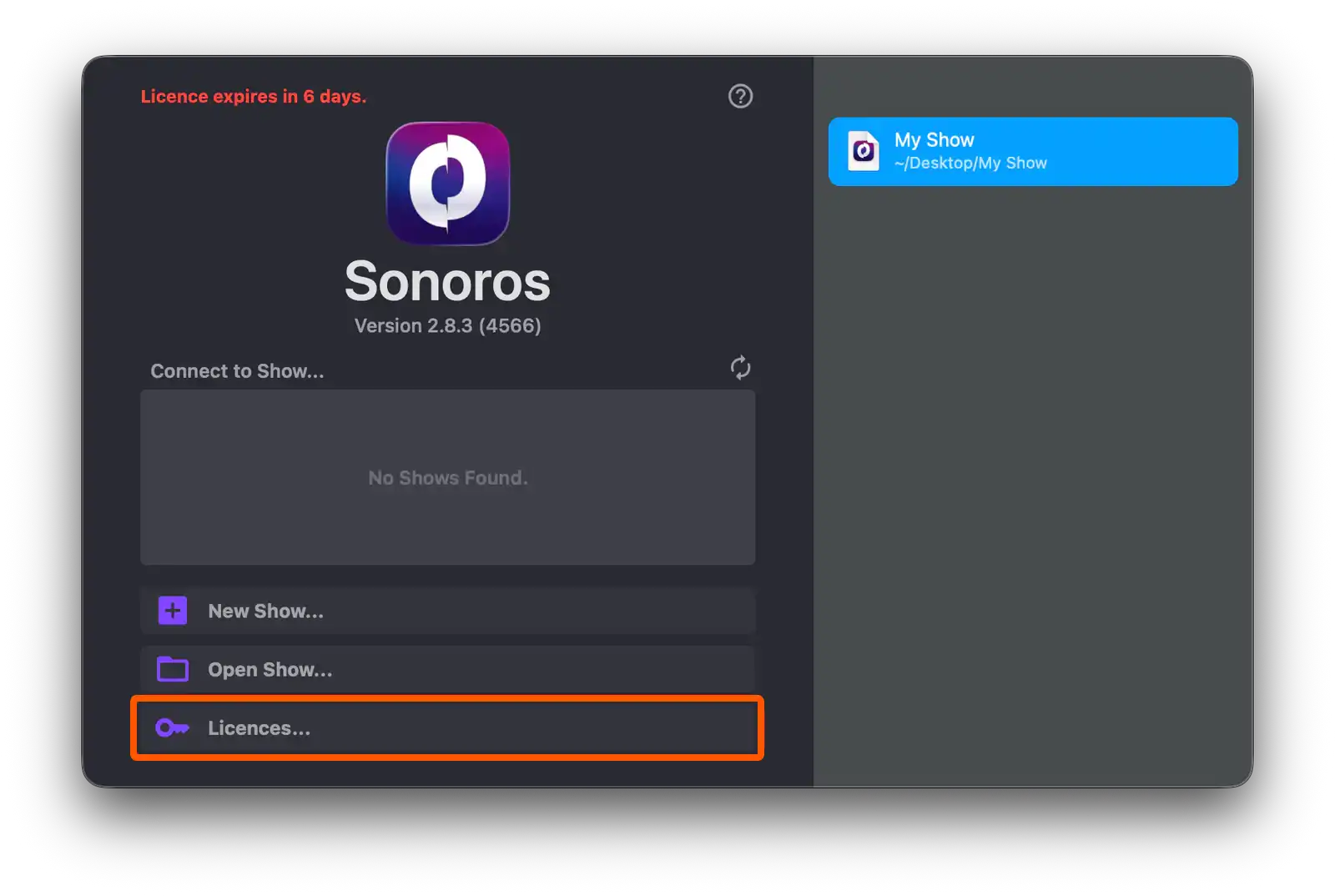
The Licence pane will display your dongle's Serial Number and Activation Number.
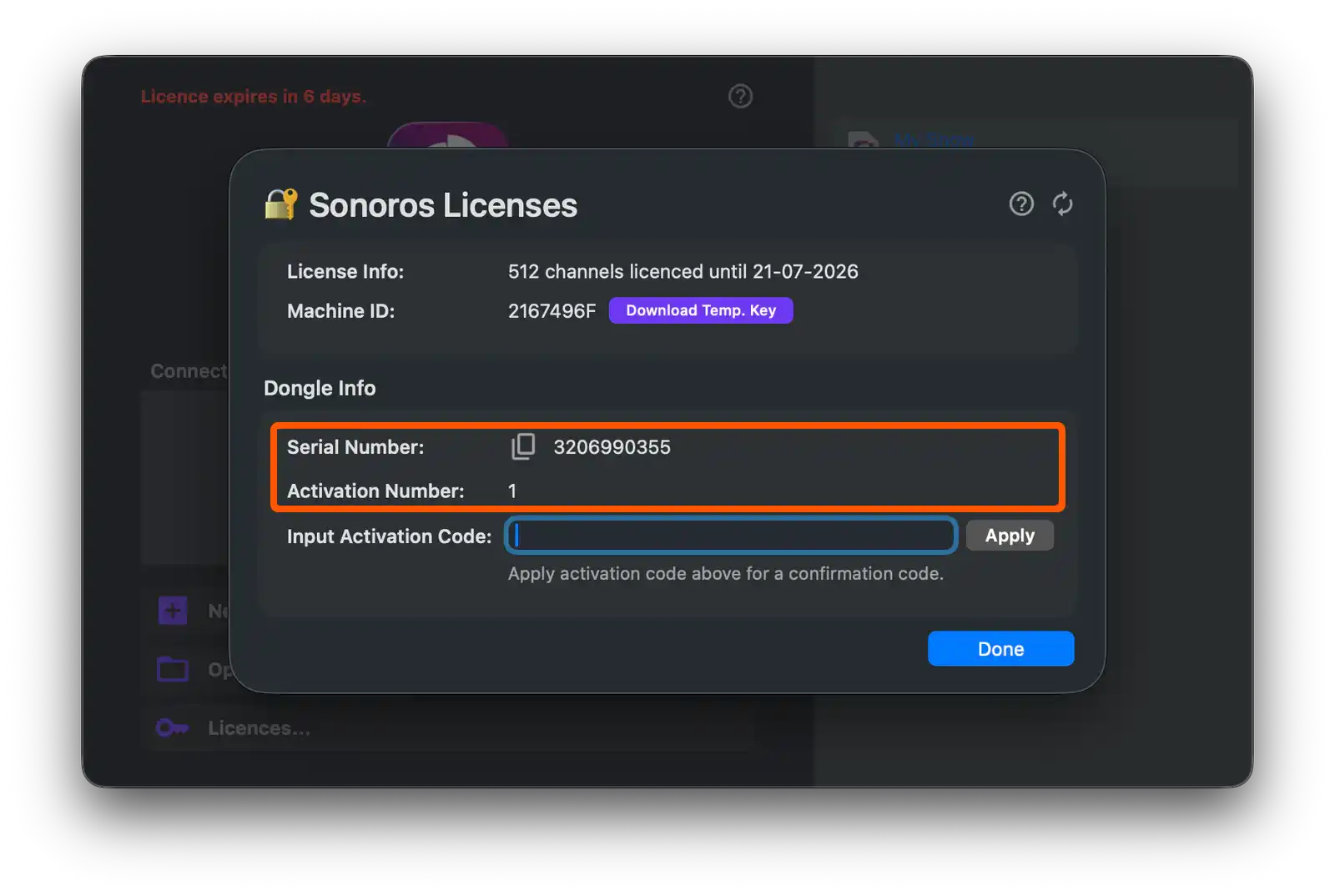
Step 2: Purchase or renew a subscription
Head to sonoros.app/pricing. Select your tier and billing period. At checkout, you'll be asked to supply your Serial Number and Activation Number so your licence can be loaded onto your specific dongle.
Step 3: Receive and enter your activation code
Once your purchase is confirmed, we'll send you an activation code. In Sonoros, open the Licence pane (splash screen → Licences), type the code into the Input Activation Code field, and click Apply.
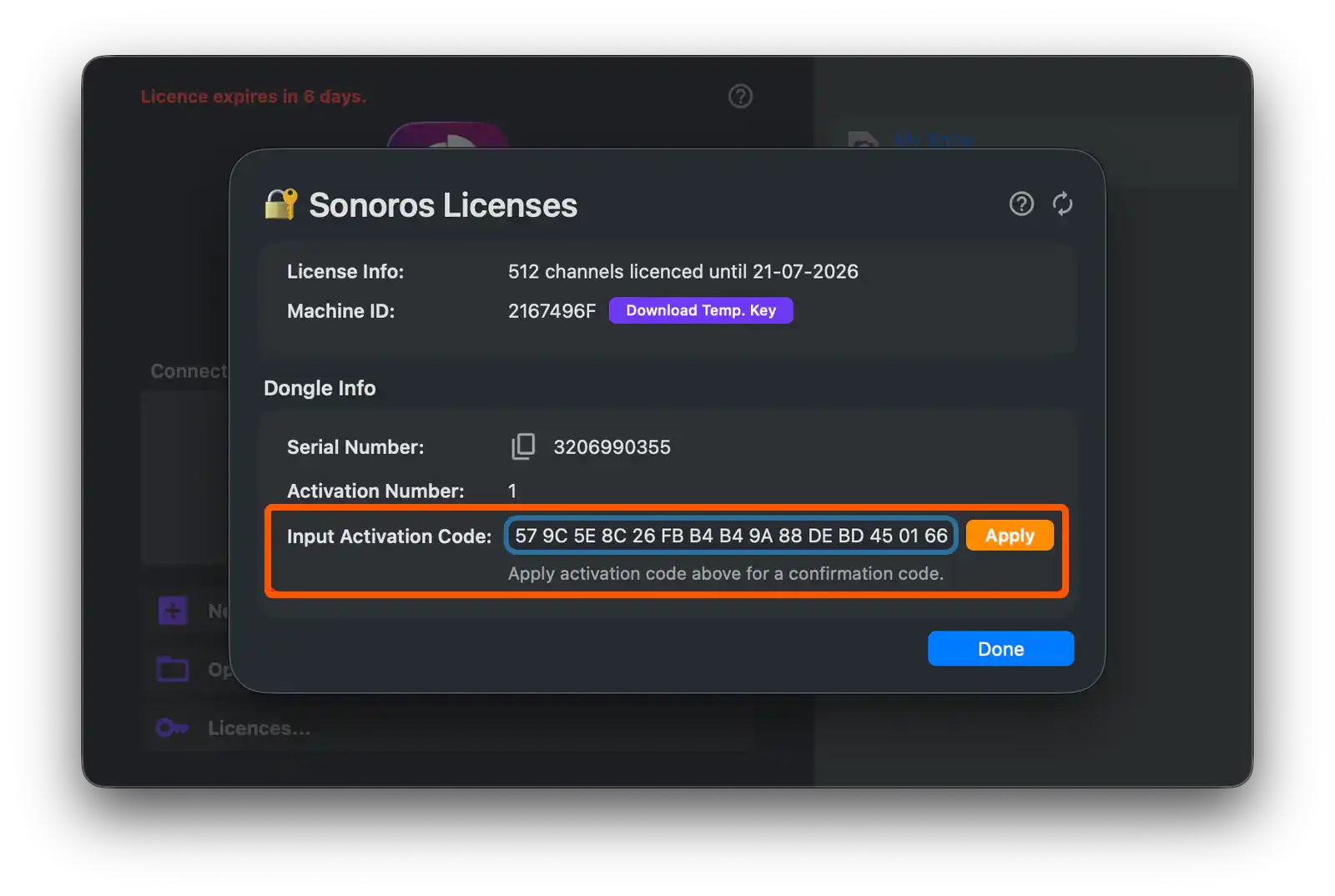
If the code is accepted, Sonoros will display a confirmation code. Make a note of this, as you may be asked for it if you contact support. The Licence pane will update to show your new licence details.
Subscription periods and expiry
Subscriptions run from the day you enter your activation code, not from the day we issue it, so you don't lose time while a code is in transit.
Monthly subscriptions are calendar months. A licence activated on 29 June expires on 29 July.
Sonoros will warn you on the splash screen in red when your licence has 7 days or fewer remaining, so you have time to renew before it lapses.
Moving between computers
Because the licence lives on the dongle hardware, moving to a new machine is simple: unplug the dongle from one Mac and plug it into another.
Renewing a licence
To renew or upgrade an existing dongle, follow the same process as a new activation. At checkout on sonoros.app/pricing, enter your dongle's Serial Number and Activation Number. You'll receive a new activation code to enter in the Licence pane.
Lost or stolen dongle
The licence is stored on the dongle hardware. If the dongle is lost or stolen, the licence cannot be recovered or transferred to a replacement. You will need to purchase a new dongle and a new subscription.
If you're unsure whether a dongle has been lost or misplaced, contact support@peachy.ventures and we'll help you work out next steps.
Frequently asked questions
Is an internet connection required to run Sonoros?
No. Once the dongle is plugged in, Sonoros validates against it locally. No internet connection is needed during normal use.
Can I use the same dongle on multiple computers?
One dongle at a time. The dongle unlocks Sonoros on whichever machine it's connected to. Unplug it from one Mac and it's immediately available on another.
What happens if I reformat my Mac?
The licence is on the dongle, not the computer. Reinstall Sonoros, plug in the dongle, and you're running.
What is the number printed on the USB casing?
That's a hardware identifier for the physical device. It's not the same as the Serial Number shown in Sonoros, which is read from the dongle's licence chip. Always use the numbers from the Licence pane when purchasing or renewing.
Do clients need their own dongle?
No. Only the Sonoros server machine requires a dongle. Clients connecting to that server are covered by the same licence, subject to the client limits of your tier.
What if the Licence pane shows "No Dongle Found"?
Check the dongle is seated properly. Try a different USB port or a hub. If the problem persists, contact support@peachy.ventures.
What if the Licence pane shows "Multiple Dongles Found"?
Sonoros expects exactly one Sonoros dongle at a time. Remove any additional dongles and refresh.
My activation code isn't working. What do I do?
Double-check you've entered the code exactly as supplied (it's case-sensitive). If it still fails, the Licence pane will show an error code. Include that when you contact support@peachy.ventures.
Sonoros uses a subscription-based dongle licence. Your licence lives on a small USB dongle rather than being tied to a particular machine or requiring an internet connection to validate. This means Sonoros never needs to phone home to check it's still licensed, and you can move between computers or reformat without updating any keys. Just take the dongle with you.
Subscriptions are how Sonoros keeps improving. An active subscription means you always receive the latest version with the newest features and hardware support included.
Tiers
Sonoros is free to download and try with two channels. When you're ready to scale up, choose the tier that fits your production.
Amateur | Pro | Enterprise | |
|---|---|---|---|
Device / audio channels | Up to 24 | Up to 48 | Up to 256 |
Clients | 1 | Up to 3 | Unlimited |
Audio mirroring from clients | ✓ | ✓ | |
RF device support | Entry-level | Pro | All, including Sennheiser Spectera |
All tiers include free updates to future versions of Sonoros.
For Enterprise pricing, contact hello@peachy.ventures.
The dongle
The licence is stored on a small USB dongle plugged into your Sonoros server machine. You only need one dongle per Sonoros system — clients connecting to that system do not require their own dongle or licence, subject to the client limits of your tier.
Two sizes are available: Standard dongle & Mini dongle.
You can buy a dongle on its own to have one ready before you need a licence, or alongside a subscription at checkout.
Important: The Serial Number and Activation Number you need to activate a licence are read from the dongle by Sonoros, and will appear in the Sonoros Licence pane once the dongle is connected. They are not the numbers printed on the physical USB casing.
How to activate a licence
Step 1: Get your dongle's Serial Number and Activation Number
Plug your dongle into your Mac. Open Sonoros. From the splash screen, click Licences.
The Licence pane will display your dongle's Serial Number and Activation Number.
Step 2: Purchase or renew a subscription
Head to sonoros.app/pricing. Select your tier and billing period. At checkout, you'll be asked to supply your Serial Number and Activation Number so your licence can be loaded onto your specific dongle.
Step 3: Receive and enter your activation code
Once your purchase is confirmed, we'll send you an activation code. In Sonoros, open the Licence pane (splash screen → Licences), type the code into the Input Activation Code field, and click Apply.
If the code is accepted, Sonoros will display a confirmation code. Make a note of this, as you may be asked for it if you contact support. The Licence pane will update to show your new licence details.
Subscription periods and expiry
Subscriptions run from the day you enter your activation code, not from the day we issue it, so you don't lose time while a code is in transit.
Monthly subscriptions are calendar months. A licence activated on 29 June expires on 29 July.
Sonoros will warn you on the splash screen in red when your licence has 7 days or fewer remaining, so you have time to renew before it lapses.
Moving between computers
Because the licence lives on the dongle hardware, moving to a new machine is simple: unplug the dongle from one Mac and plug it into another.
Renewing a licence
To renew or upgrade an existing dongle, follow the same process as a new activation. At checkout on sonoros.app/pricing, enter your dongle's Serial Number and Activation Number. You'll receive a new activation code to enter in the Licence pane.
Lost or stolen dongle
The licence is stored on the dongle hardware. If the dongle is lost or stolen, the licence cannot be recovered or transferred to a replacement. You will need to purchase a new dongle and a new subscription.
If you're unsure whether a dongle has been lost or misplaced, contact support@peachy.ventures and we'll help you work out next steps.
Frequently asked questions
Is an internet connection required to run Sonoros?
No. Once the dongle is plugged in, Sonoros validates against it locally. No internet connection is needed during normal use.
Can I use the same dongle on multiple computers?
One dongle at a time. The dongle unlocks Sonoros on whichever machine it's connected to. Unplug it from one Mac and it's immediately available on another.
What happens if I reformat my Mac?
The licence is on the dongle, not the computer. Reinstall Sonoros, plug in the dongle, and you're running.
What is the number printed on the USB casing?
That's a hardware identifier for the physical device. It's not the same as the Serial Number shown in Sonoros, which is read from the dongle's licence chip. Always use the numbers from the Licence pane when purchasing or renewing.
Do clients need their own dongle?
No. Only the Sonoros server machine requires a dongle. Clients connecting to that server are covered by the same licence, subject to the client limits of your tier.
What if the Licence pane shows "No Dongle Found"?
Check the dongle is seated properly. Try a different USB port or a hub. If the problem persists, contact support@peachy.ventures.
What if the Licence pane shows "Multiple Dongles Found"?
Sonoros expects exactly one Sonoros dongle at a time. Remove any additional dongles and refresh.
My activation code isn't working. What do I do?
Double-check you've entered the code exactly as supplied (it's case-sensitive). If it still fails, the Licence pane will show an error code. Include that when you contact support@peachy.ventures.
How-To Video
How-To Video