
Wiki
Wiki
OSC Setup & Command Reference
OSC Setup & Command Reference
Sonoros accepts OSC commands over UDP, which lets you control listen selection and trigger chat actions from a show control system, a tablet, or any OSC-capable device on the same network.
Enabling OSC
Go to Setup > Show Settings. Use the toggle next to OSC Port to enable OSC, and set the port number you want Sonoros to listen on. The default is 5429. If you change it and want to go back, click Restore Default Port.
Clients can enable OSC independently with their own port.
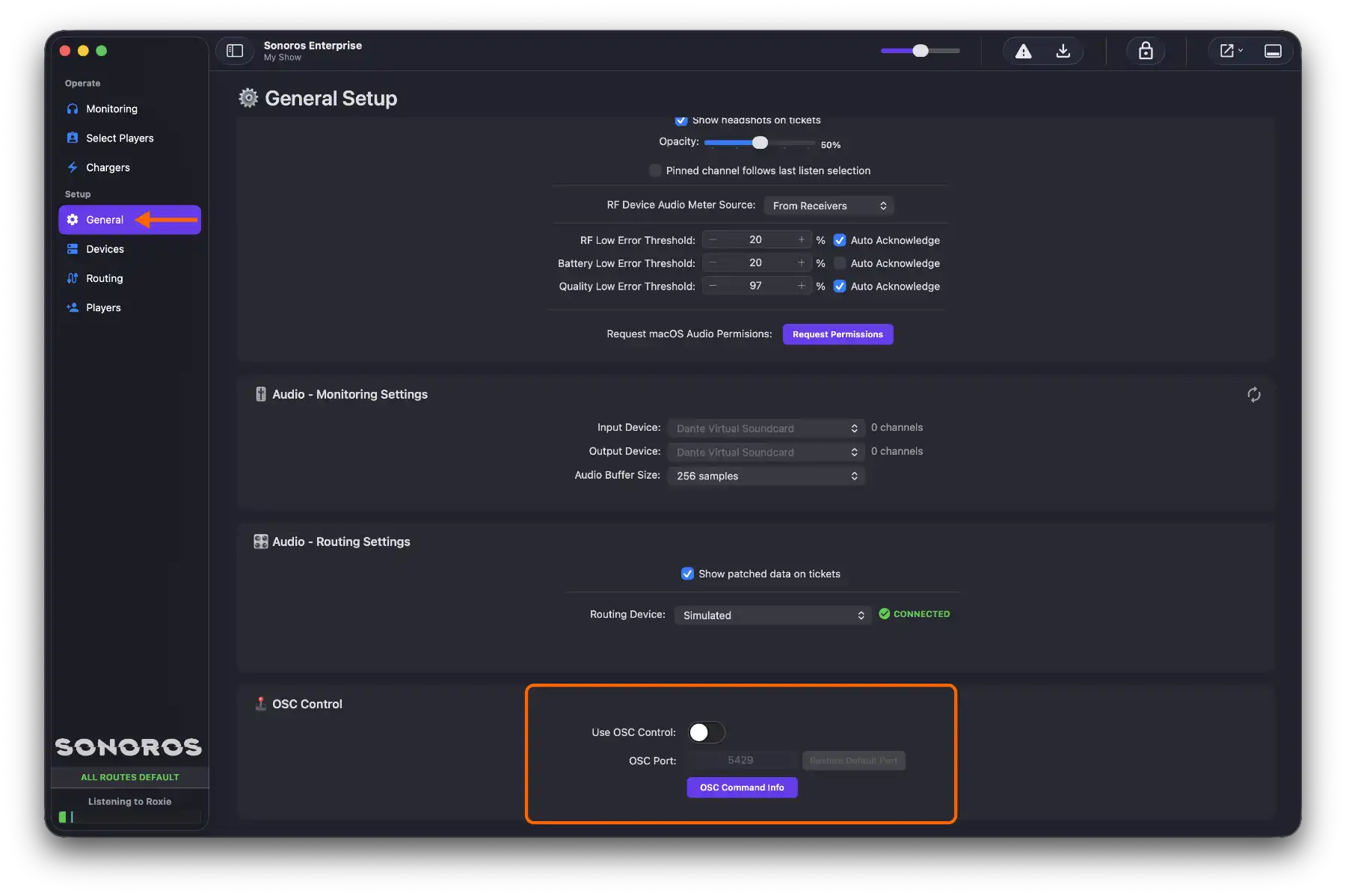
Once enabled, Sonoros starts listening for UDP packets on that port. To see the command reference inside the app, click OSC Command Info.
Command reference
All commands are sent as OSC messages over UDP to the port you configured. Every command starts with /sonoros/.
Select a listen channel by name
/sonoros/listen/channel/name s "Channel Name"
Selects the first channel with the exact, case-sensitive configured name. If the currently selected channel has that name, sending the command again selects the next matching channel in device and channel order, wrapping back to the first match. If there is no match, the current selection is unchanged. Unnamed channels cannot be selected with this command.
Select by monitoring channel
/sonoros/listen/monitoringchannel/1
Selects the first channel assigned to monitoring channel 1. Repeated sends cycle through matching channels in device and channel order, wrapping back to the first match. Monitoring channel numbers are 1-based. Stereo assignments match their displayed starting channel.
Clear the listen selection
/sonoros/listen/clear
Clears the currently selected listen channel and stops listen playback.
Navigate the listen grid
/sonoros/listen/navigate/up/sonoros/listen/navigate/down/sonoros/listen/navigate/left/sonoros/listen/navigate/right
Moves the listen selection in the requested direction, following the grid's arrow-key navigation.
Send a custom chat message
/sonoros/chat/custom s "Message" s "Sender Name"
Sends a message to the chat window. The sender name is optional — if omitted, the message will appear as coming from "OSC".
Send a chat macro
/sonoros/chat/macro i [bank] i [macro] s "Sender Name"
Sends one of your configured chat macros. Replace [bank] with the bank number (1–4) and [macro] with the macro number (1–6). The sender name is optional.
Send a chat flash
/sonoros/chat/flash
Triggers a chat flash on all connected clients, the same as pressing the Flash button manually.
Clear chat
/sonoros/chat/clear
Clears the chat history on the Sonoros instance receiving the command, the same as using Clear Chat in that app. The command takes no arguments.
Sonoros accepts OSC commands over UDP, which lets you control listen selection and trigger chat actions from a show control system, a tablet, or any OSC-capable device on the same network.
Enabling OSC
Go to Setup > Show Settings. Use the toggle next to OSC Port to enable OSC, and set the port number you want Sonoros to listen on. The default is 5429. If you change it and want to go back, click Restore Default Port.
Clients can enable OSC independently with their own port.
Once enabled, Sonoros starts listening for UDP packets on that port. To see the command reference inside the app, click OSC Command Info.
Command reference
All commands are sent as OSC messages over UDP to the port you configured. Every command starts with /sonoros/.
Select a listen channel by name
/sonoros/listen/channel/name s "Channel Name"
Selects the first channel with the exact, case-sensitive configured name. If the currently selected channel has that name, sending the command again selects the next matching channel in device and channel order, wrapping back to the first match. If there is no match, the current selection is unchanged. Unnamed channels cannot be selected with this command.
Select by monitoring channel
/sonoros/listen/monitoringchannel/1
Selects the first channel assigned to monitoring channel 1. Repeated sends cycle through matching channels in device and channel order, wrapping back to the first match. Monitoring channel numbers are 1-based. Stereo assignments match their displayed starting channel.
Clear the listen selection
/sonoros/listen/clear
Clears the currently selected listen channel and stops listen playback.
Navigate the listen grid
/sonoros/listen/navigate/up/sonoros/listen/navigate/down/sonoros/listen/navigate/left/sonoros/listen/navigate/right
Moves the listen selection in the requested direction, following the grid's arrow-key navigation.
Send a custom chat message
/sonoros/chat/custom s "Message" s "Sender Name"
Sends a message to the chat window. The sender name is optional — if omitted, the message will appear as coming from "OSC".
Send a chat macro
/sonoros/chat/macro i [bank] i [macro] s "Sender Name"
Sends one of your configured chat macros. Replace [bank] with the bank number (1–4) and [macro] with the macro number (1–6). The sender name is optional.
Send a chat flash
/sonoros/chat/flash
Triggers a chat flash on all connected clients, the same as pressing the Flash button manually.
Clear chat
/sonoros/chat/clear
Clears the chat history on the Sonoros instance receiving the command, the same as using Clear Chat in that app. The command takes no arguments.