
Wiki
Wiki
Players
Players
Players help you associate channels with people. You set up the player roster and mic assignments in Setup, then select who is currently on each mic during the show from Operate.
Adding players
Open Setup > Players from the sidebar.
Click Add Player. Enter the player's name and any notes you want to attach to them.
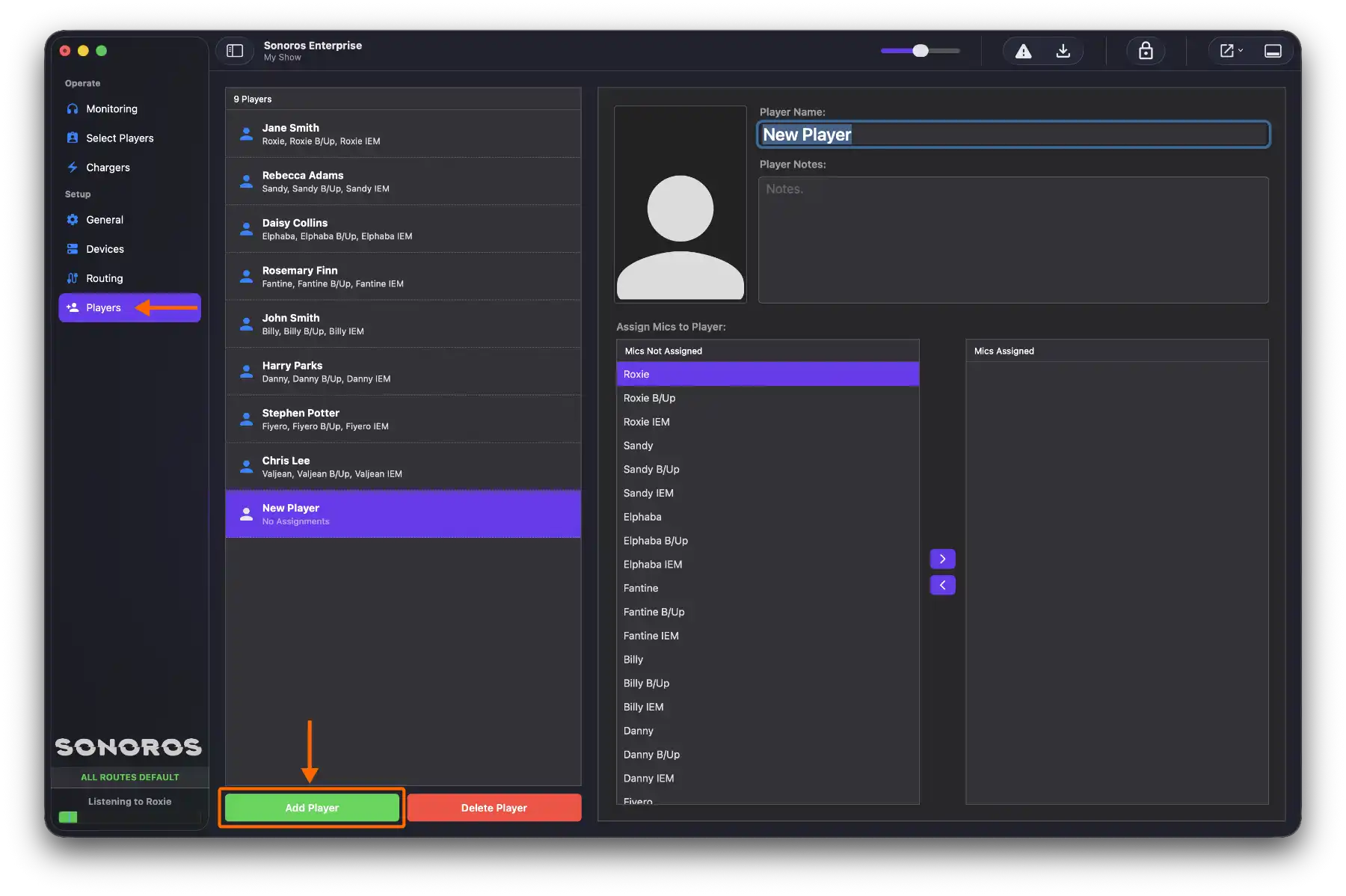
The mic list shows all the channels in your show. Assign the mics that this player might use. This represents which mics they could be on, not which one they're currently playing. You'll set the current assignment during the show.
You can also load a headshot for the player here. It will appear as a background on that player's channel ticket if headshots on tickets is enabled.
Reordering mic assignments
Within a player's entry, you can reorder their mic assignments by dragging. The first mic in the list is treated as the principal assignment and will be selected automatically when you use Select All Principals during the show.
You can also do this from the Select Players view by dragging in the assignments list.
Player notes
Notes you enter for a player are visible in the Channel Info inspector when that player is assigned to a channel. You can also edit them there during the show.
Headshots on tickets
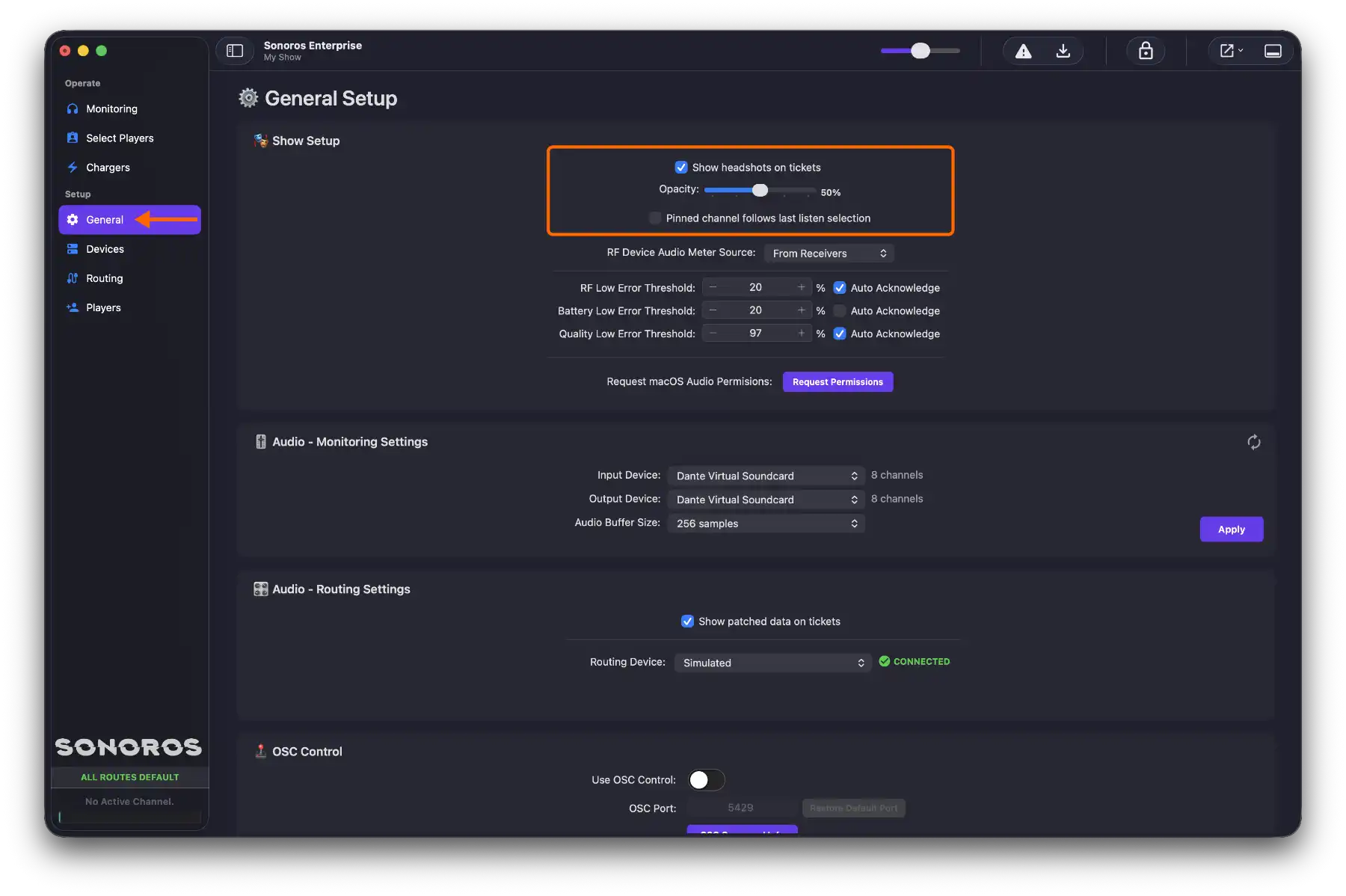
To show headshots as backgrounds on channel tickets, go to Setup > General and tick Show headshots on tickets. Use the Opacity slider to set how prominently the headshot appears.
Adjusting headshot position
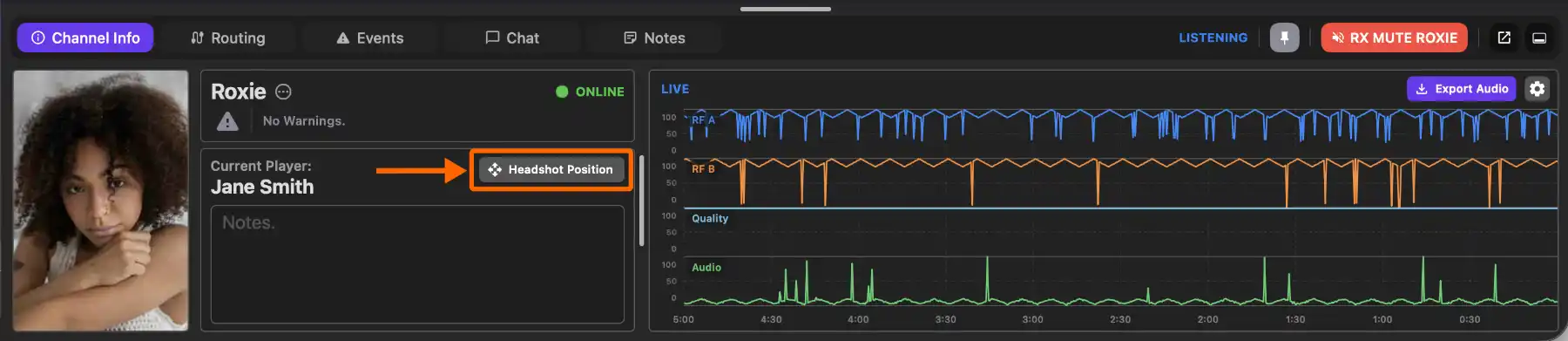
The headshot position on a ticket can be adjusted per channel. On the Monitoring tab, select a channel. In the Channel Info inspector, a Headshot Position button appears when headshots on tickets are enabled. Click and drag it to reposition the headshot on that channel's ticket.
Selecting current players
During the show, go to Operate > Select Players. For each channel, you'll see the players assigned to it. Click to select who is currently on that mic.
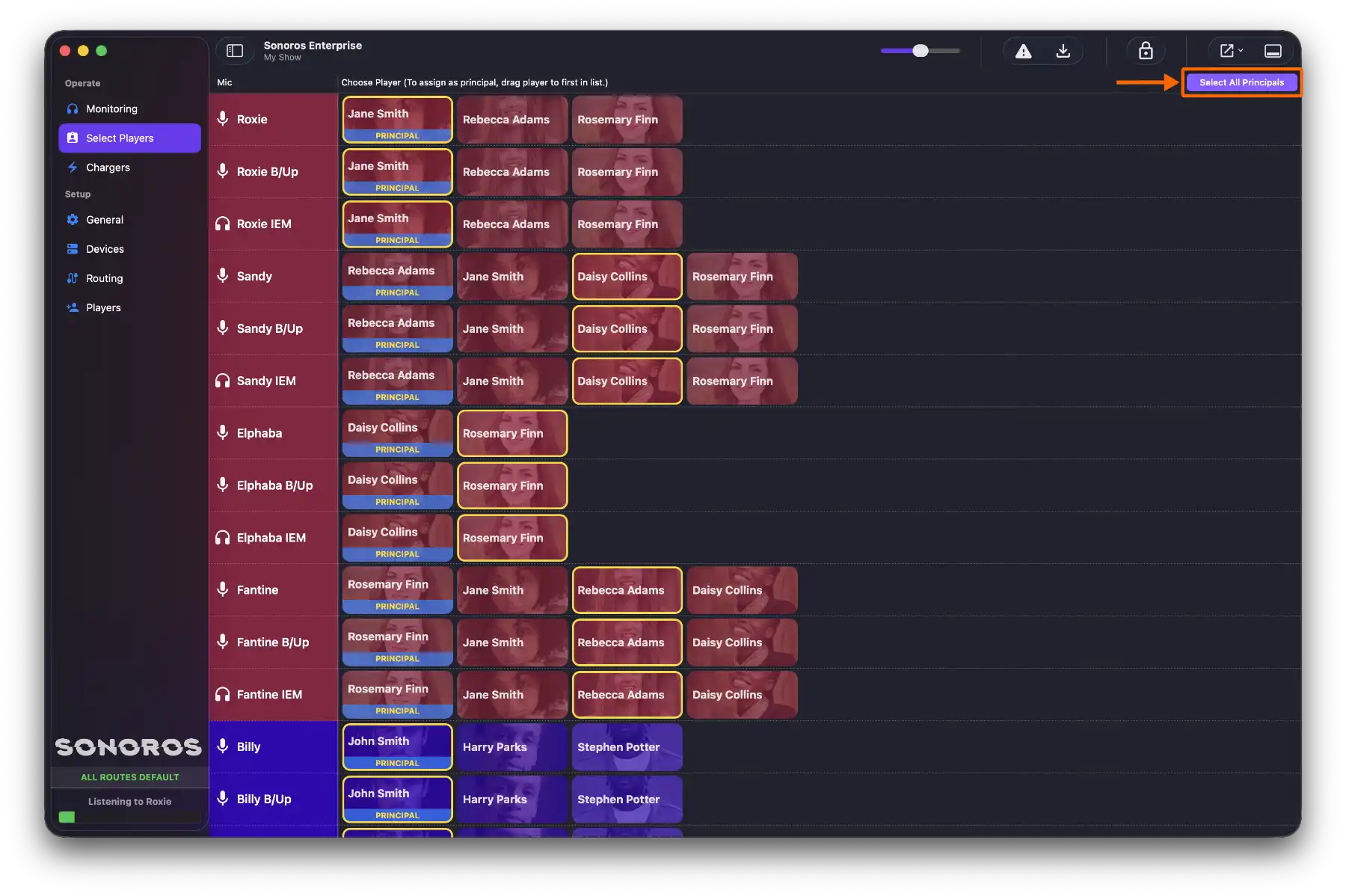
To load the principal player for all channels at once, click Select All Principals. This selects the first player in each channel's assignment list.
Players help you associate channels with people. You set up the player roster and mic assignments in Setup, then select who is currently on each mic during the show from Operate.
Adding players
Open Setup > Players from the sidebar.
Click Add Player. Enter the player's name and any notes you want to attach to them.
The mic list shows all the channels in your show. Assign the mics that this player might use. This represents which mics they could be on, not which one they're currently playing. You'll set the current assignment during the show.
You can also load a headshot for the player here. It will appear as a background on that player's channel ticket if headshots on tickets is enabled.
Reordering mic assignments
Within a player's entry, you can reorder their mic assignments by dragging. The first mic in the list is treated as the principal assignment and will be selected automatically when you use Select All Principals during the show.
You can also do this from the Select Players view by dragging in the assignments list.
Player notes
Notes you enter for a player are visible in the Channel Info inspector when that player is assigned to a channel. You can also edit them there during the show.
Headshots on tickets
To show headshots as backgrounds on channel tickets, go to Setup > General and tick Show headshots on tickets. Use the Opacity slider to set how prominently the headshot appears.
Adjusting headshot position
The headshot position on a ticket can be adjusted per channel. On the Monitoring tab, select a channel. In the Channel Info inspector, a Headshot Position button appears when headshots on tickets are enabled. Click and drag it to reposition the headshot on that channel's ticket.
Selecting current players
During the show, go to Operate > Select Players. For each channel, you'll see the players assigned to it. Click to select who is currently on that mic.
To load the principal player for all channels at once, click Select All Principals. This selects the first player in each channel's assignment list.