
Wiki
Wiki
Sennheiser Spectera Setup
Sennheiser Spectera Setup
Spectera support is an Enterprise-only feature.
Sennheiser Spectera is a wireless system that works differently to fixed-channel RF receivers. Instead of a fixed number of channels tied to hardware, Spectera uses mobile terminals (MTs). Each MT is a physical Spectera transmitter: body-worn, handheld, or otherwise. Sonoros creates one mic channel and one IEM channel per MT, so a Spectera device configured for 32 MTs gives you 32 mic channels and 32 IEM channels in the grid.
Adding a Spectera device
Go to Setup > Devices and click Add Device. Select Sennheiser Spectera from the device type dropdown and enter the IP address and password for the Spectera Base Station.
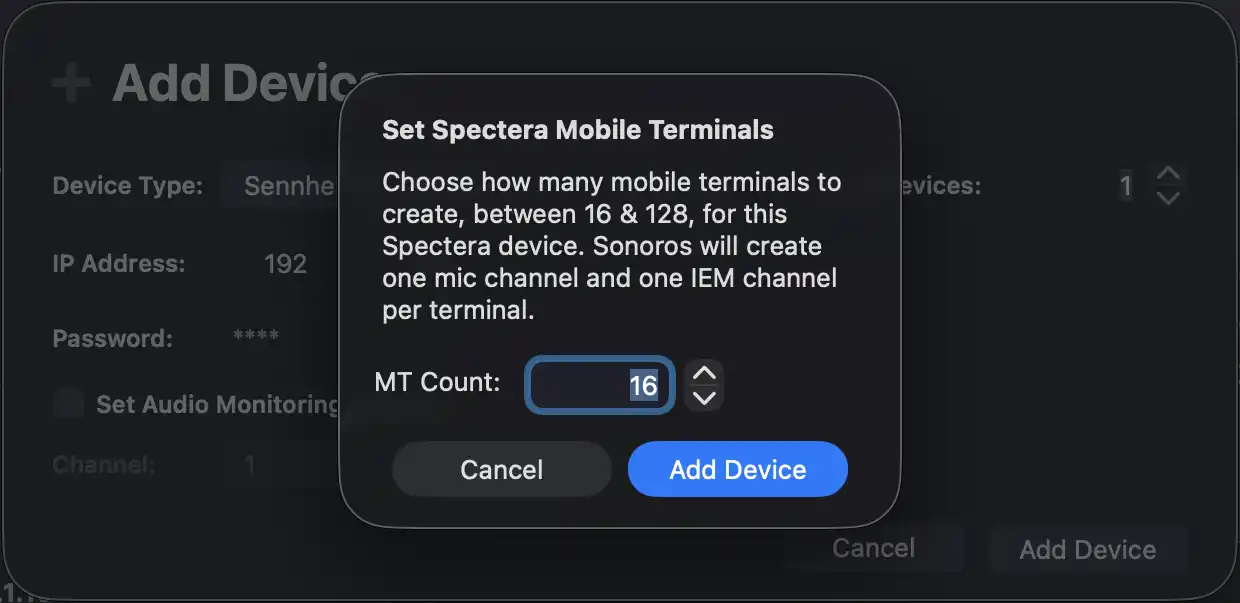
When you click Add Device, Sonoros will prompt you to set the number of mobile terminals. Set MT Count to the number you need, between 16 and 128. This count is also capped by your license. Click Add Device to confirm.
Sonoros will add the device and create the corresponding mic and IEM channels in the grid.
Connection and password
Once added, the device will attempt to connect. If the password is correct, the device goes ONLINE. If the password is wrong, the status shows LOCKED (RE-ENTER PASSWORD) in yellow, and the Edit Password button turns yellow to draw your attention. Click Edit Password to correct it.

Assigning mobile terminals to channels
Each MT assignment in Sonoros maps to one physical MT and creates two channels in the grid: one mic channel and one IEM channel. The Spectera Mobile Terminal dropdown in each channel's inspector lets you assign a specific MT to that slot manually.
To assign MTs automatically, click MT Auto-Assign in the device inspector. This assigns unassigned MTs to unassigned slots, leaving any existing assignments in place.

Changing the MT count
If you need to increase or decrease the number of mobile terminals for a device, click Resize in the device inspector. This opens the same MT Count prompt you saw when adding the device. The new count must be between 16 and 128 and within your license limit.
Monitoring view icons
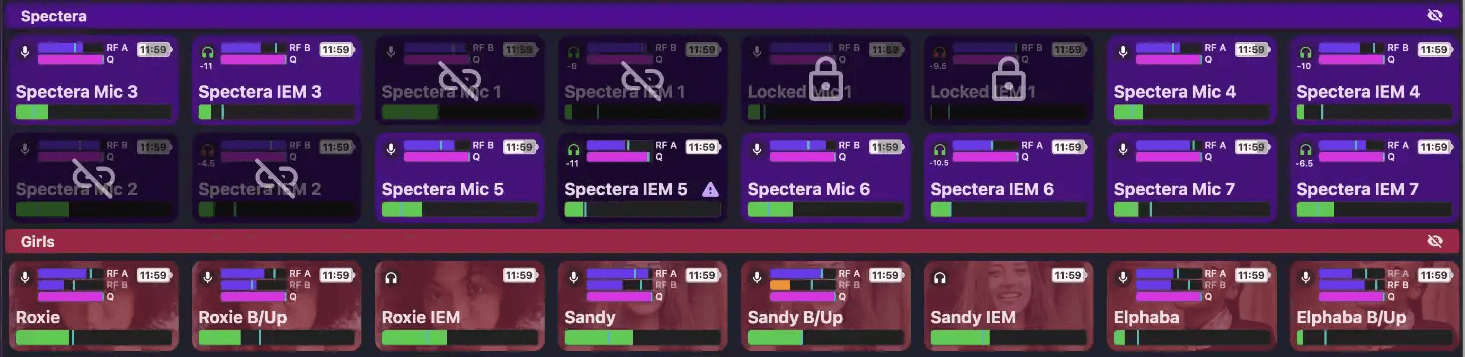
Spectera channels use different ticket icons depending on role and state.
Mic channels show a mic icon when an MT is assigned. If no MT has been assigned to that slot, the channel shows the Spectera icon with a no-TX badge overlay.
IEM channels show a headphone icon. When headphones are plugged in to the MT, the icon is blue; when unplugged, it is red. The IEM channel also shows the current headphone volume level on the ticket.
On top of the role icon, a badge overlay appears when the device itself has a connection problem: a lock icon when the password is wrong, or a disconnected icon when the Base Station cannot be reached.
Spectera support is an Enterprise-only feature.
Sennheiser Spectera is a wireless system that works differently to fixed-channel RF receivers. Instead of a fixed number of channels tied to hardware, Spectera uses mobile terminals (MTs). Each MT is a physical Spectera transmitter: body-worn, handheld, or otherwise. Sonoros creates one mic channel and one IEM channel per MT, so a Spectera device configured for 32 MTs gives you 32 mic channels and 32 IEM channels in the grid.
Adding a Spectera device
Go to Setup > Devices and click Add Device. Select Sennheiser Spectera from the device type dropdown and enter the IP address and password for the Spectera Base Station.
When you click Add Device, Sonoros will prompt you to set the number of mobile terminals. Set MT Count to the number you need, between 16 and 128. This count is also capped by your license. Click Add Device to confirm.
Sonoros will add the device and create the corresponding mic and IEM channels in the grid.
Connection and password
Once added, the device will attempt to connect. If the password is correct, the device goes ONLINE. If the password is wrong, the status shows LOCKED (RE-ENTER PASSWORD) in yellow, and the Edit Password button turns yellow to draw your attention. Click Edit Password to correct it.
Assigning mobile terminals to channels
Each MT assignment in Sonoros maps to one physical MT and creates two channels in the grid: one mic channel and one IEM channel. The Spectera Mobile Terminal dropdown in each channel's inspector lets you assign a specific MT to that slot manually.
To assign MTs automatically, click MT Auto-Assign in the device inspector. This assigns unassigned MTs to unassigned slots, leaving any existing assignments in place.
Changing the MT count
If you need to increase or decrease the number of mobile terminals for a device, click Resize in the device inspector. This opens the same MT Count prompt you saw when adding the device. The new count must be between 16 and 128 and within your license limit.
Monitoring view icons
Spectera channels use different ticket icons depending on role and state.
Mic channels show a mic icon when an MT is assigned. If no MT has been assigned to that slot, the channel shows the Spectera icon with a no-TX badge overlay.
IEM channels show a headphone icon. When headphones are plugged in to the MT, the icon is blue; when unplugged, it is red. The IEM channel also shows the current headphone volume level on the ticket.
On top of the role icon, a badge overlay appears when the device itself has a connection problem: a lock icon when the password is wrong, or a disconnected icon when the Base Station cannot be reached.