
Wiki
Wiki
Warnings & Acknowledgement
Warnings & Acknowledgement
Sonoros monitors each channel for signal problems and raises a warning when something crosses a threshold. When a warning fires, the channel ticket dims and a warning indicator appears.
Warning types
RF Low fires when both antennas drop below the RF threshold. Because Sonoros uses the stronger of the two antennas, you will only see this warning when there is genuinely no good signal path available.
Battery Low fires when battery level drops below the battery threshold.
Quality Low fires when channel quality drops below the quality threshold.
AF Peak fires when the audio level at the transmitter hits 100%. There is no configurable threshold for this one because there is nothing to configure: a peak is a peak.
Thresholds
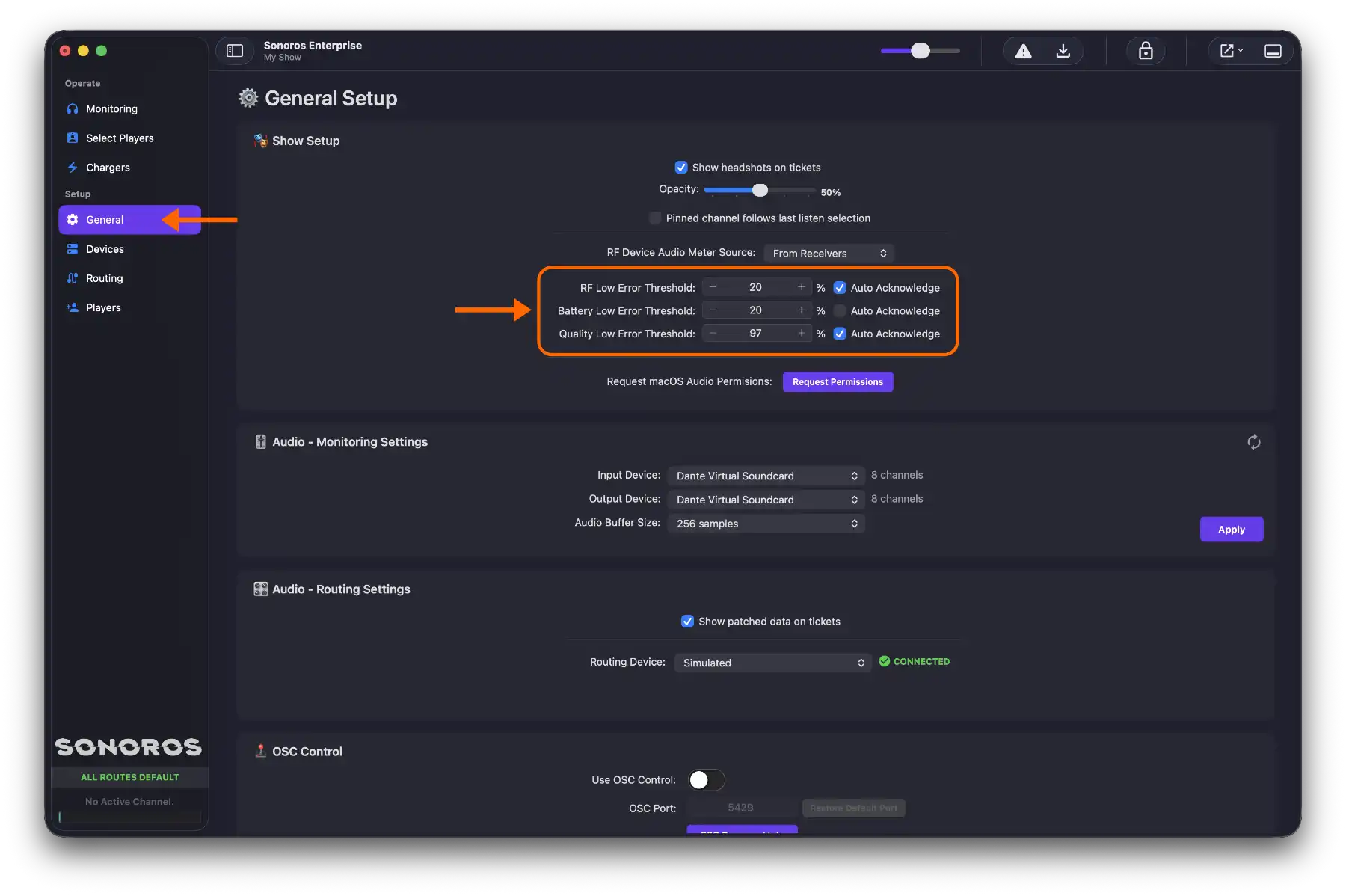
RF Low, Battery Low, and Quality Low thresholds are set in Setup > Show Settings. Set them to suit your equipment and environment.
Viewing and acknowledging warnings
Click the warning indicator on a channel ticket to open the Warnings popover. Active warnings appear in yellow.
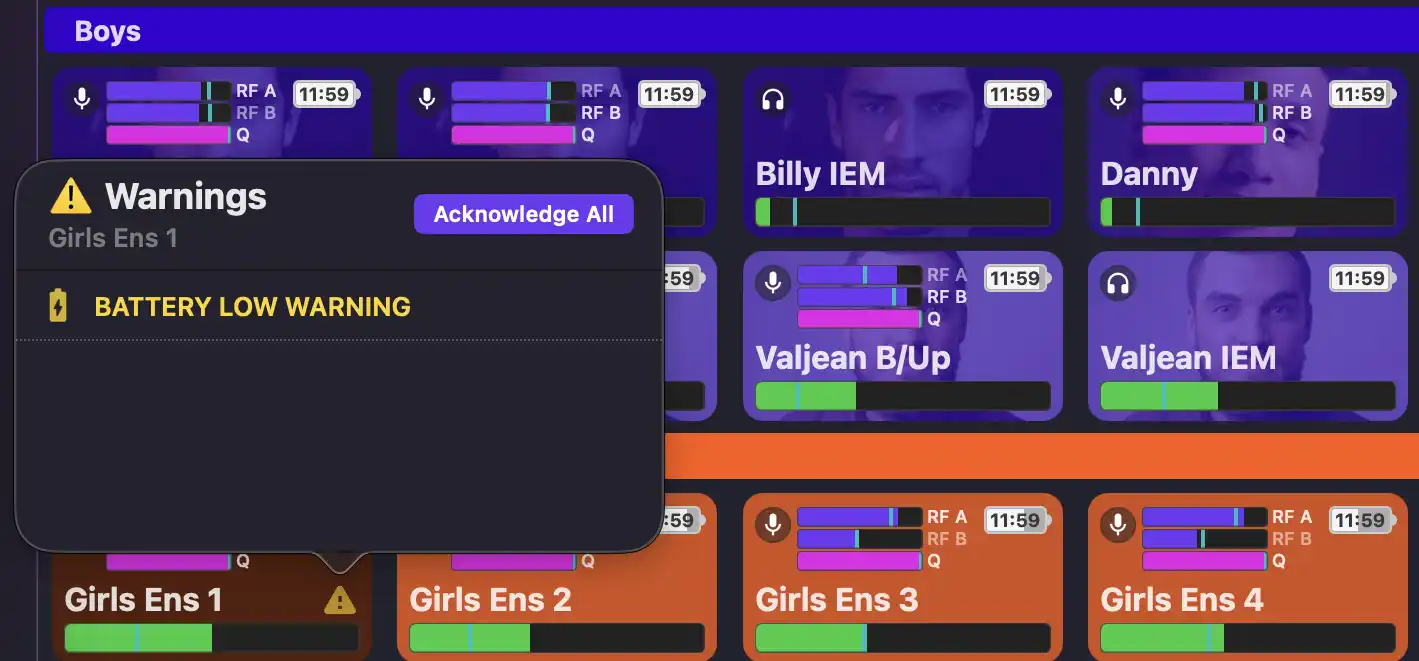
On the server, click Acknowledge All Warnings in the toolbar to mark all warnings as seen. Acknowledged warnings turn grey with a tick.
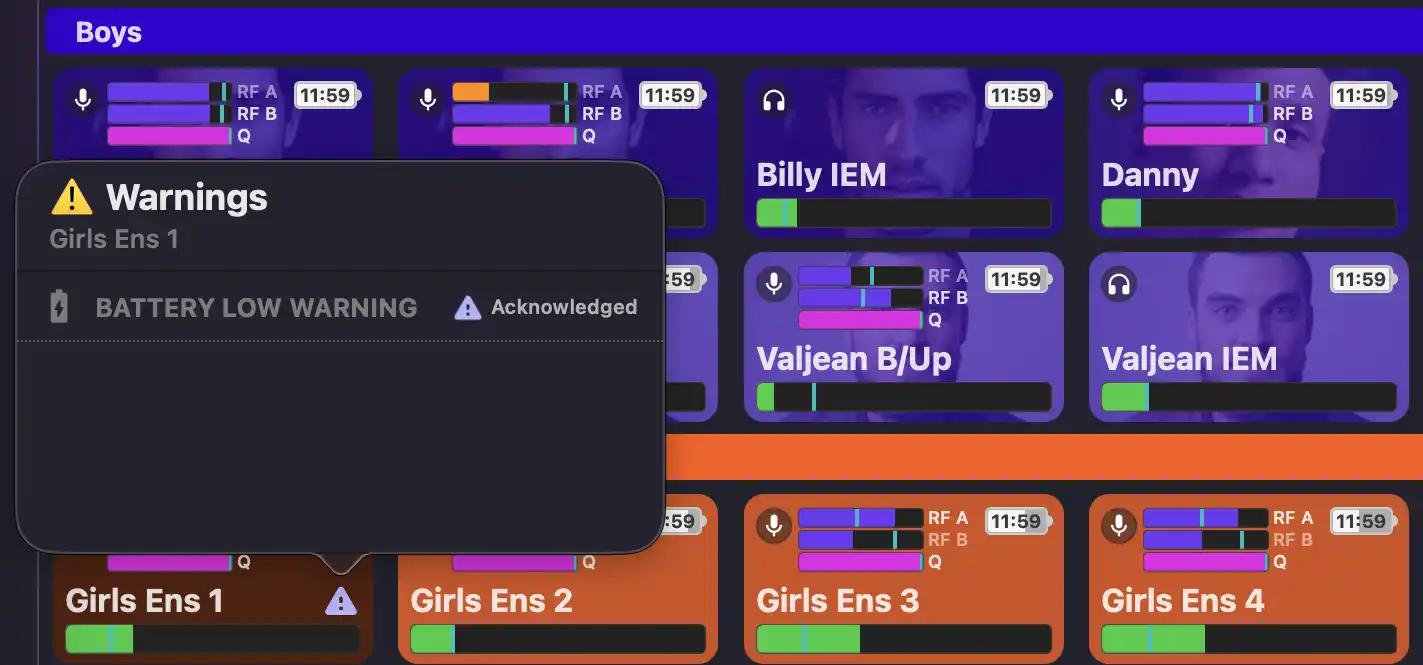
Clients can view warnings but cannot acknowledge them.
Once acknowledged, a warning clears automatically when the underlying condition recovers. If you do not acknowledge a warning, it stays flagged even after the signal comes back, so you have a record that it happened.
Warnings in the history chart
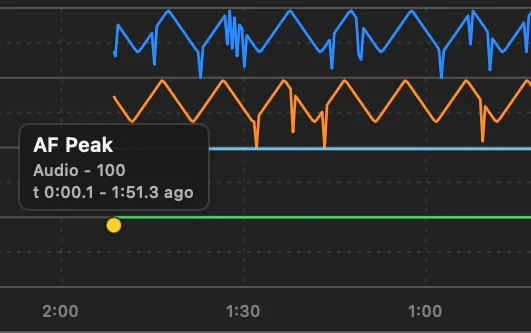
Warning events are marked on a channel's history chart so you can see exactly when they occurred relative to the RF, quality, battery, and audio data. Open the chart for a channel and enable Show Warning Markers from the chart options menu to see them.
This makes it easy to correlate a warning with what was happening to the signal at that moment, which can be useful when investigating a problem after it has happened.
Auto-acknowledge
Each warning type has an Auto-Acknowledge option in Setup > Show Settings. When enabled, warnings for that type are automatically marked as seen the moment they fire. They still appear in the Warnings popover so you have a complete record, but they will not demand your attention mid-show.
This is useful for conditions you want to log but not be interrupted by mid-show, such as brief RF dips.
Sonoros monitors each channel for signal problems and raises a warning when something crosses a threshold. When a warning fires, the channel ticket dims and a warning indicator appears.
Warning types
RF Low fires when both antennas drop below the RF threshold. Because Sonoros uses the stronger of the two antennas, you will only see this warning when there is genuinely no good signal path available.
Battery Low fires when battery level drops below the battery threshold.
Quality Low fires when channel quality drops below the quality threshold.
AF Peak fires when the audio level at the transmitter hits 100%. There is no configurable threshold for this one because there is nothing to configure: a peak is a peak.
Thresholds
RF Low, Battery Low, and Quality Low thresholds are set in Setup > Show Settings. Set them to suit your equipment and environment.
Viewing and acknowledging warnings
Click the warning indicator on a channel ticket to open the Warnings popover. Active warnings appear in yellow.
On the server, click Acknowledge All Warnings in the toolbar to mark all warnings as seen. Acknowledged warnings turn grey with a tick.
Clients can view warnings but cannot acknowledge them.
Once acknowledged, a warning clears automatically when the underlying condition recovers. If you do not acknowledge a warning, it stays flagged even after the signal comes back, so you have a record that it happened.
Warnings in the history chart
Warning events are marked on a channel's history chart so you can see exactly when they occurred relative to the RF, quality, battery, and audio data. Open the chart for a channel and enable Show Warning Markers from the chart options menu to see them.
This makes it easy to correlate a warning with what was happening to the signal at that moment, which can be useful when investigating a problem after it has happened.
Auto-acknowledge
Each warning type has an Auto-Acknowledge option in Setup > Show Settings. When enabled, warnings for that type are automatically marked as seen the moment they fire. They still appear in the Warnings popover so you have a complete record, but they will not demand your attention mid-show.
This is useful for conditions you want to log but not be interrupted by mid-show, such as brief RF dips.