
Wiki
Wiki
Dante Setup
Dante Setup
This article covers getting Dante Virtual Soundcard working as an audio input for Sonoros.
What you need
Dante Virtual Soundcard (DVS) installed on your Sonoros server Mac. DVS is available from Audinate. A DVS licence is required.
Dante Controller installed on any machine with network access to your Dante network.
1. Start Dante Virtual Soundcard
Open Dante Virtual Soundcard and start it. Before starting, set the number of channels you want available.
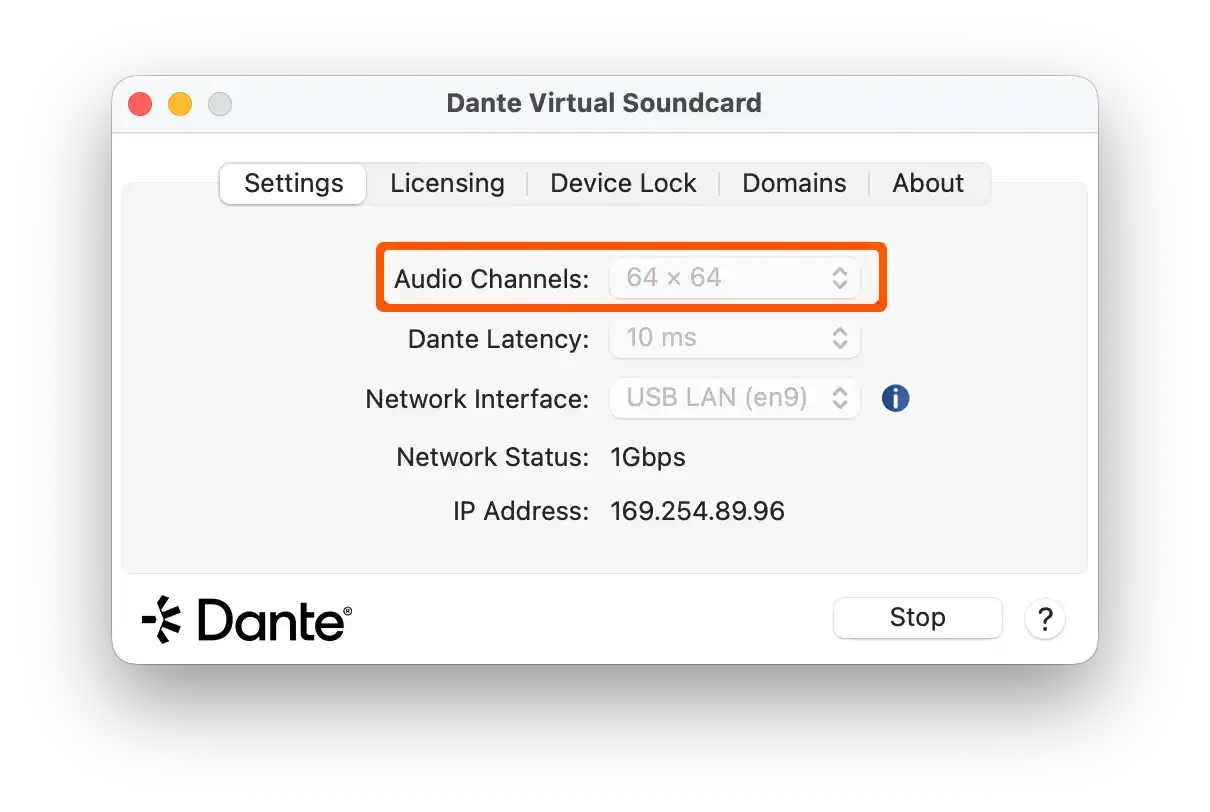
Tip: The channel count you set here determines how many channels appear in Sonoros. If you set DVS to 64 channels, you will see 64 input channels when you select it as your audio device in Sonoros.
2. Select DVS as your input and/or output device in Sonoros
In Sonoros, open Setup > General and scroll to Audio Monitoring Settings.
You can use DVS as your input, your output, both, or neither: set whichever combination suits your setup.
Set your Input Device to Dante Virtual Soundcard to bring Dante audio into Sonoros for monitoring. The channel count you configured in DVS determines how many input channels are available.
Set your Output Device to Dante Virtual Soundcard to route Sonoros audio back onto the Dante network. This is useful for master monitoring (sending your currently-listened channel out to a Dante destination) and for audio mirroring on Pro and Enterprise licences, where a client's monitored audio is routed to a physical output on the server.
Click Apply when done.

See Audio Monitoring and Streaming for more on assigning input channels to your devices and configuring audio mirroring.
3. Route channels in Dante Controller
Open Dante Controller. The transmit channels from your Dante devices appear as rows in the routing matrix, and the DVS receive channels appear as columns. Click the intersections to route transmit channels to DVS inputs.
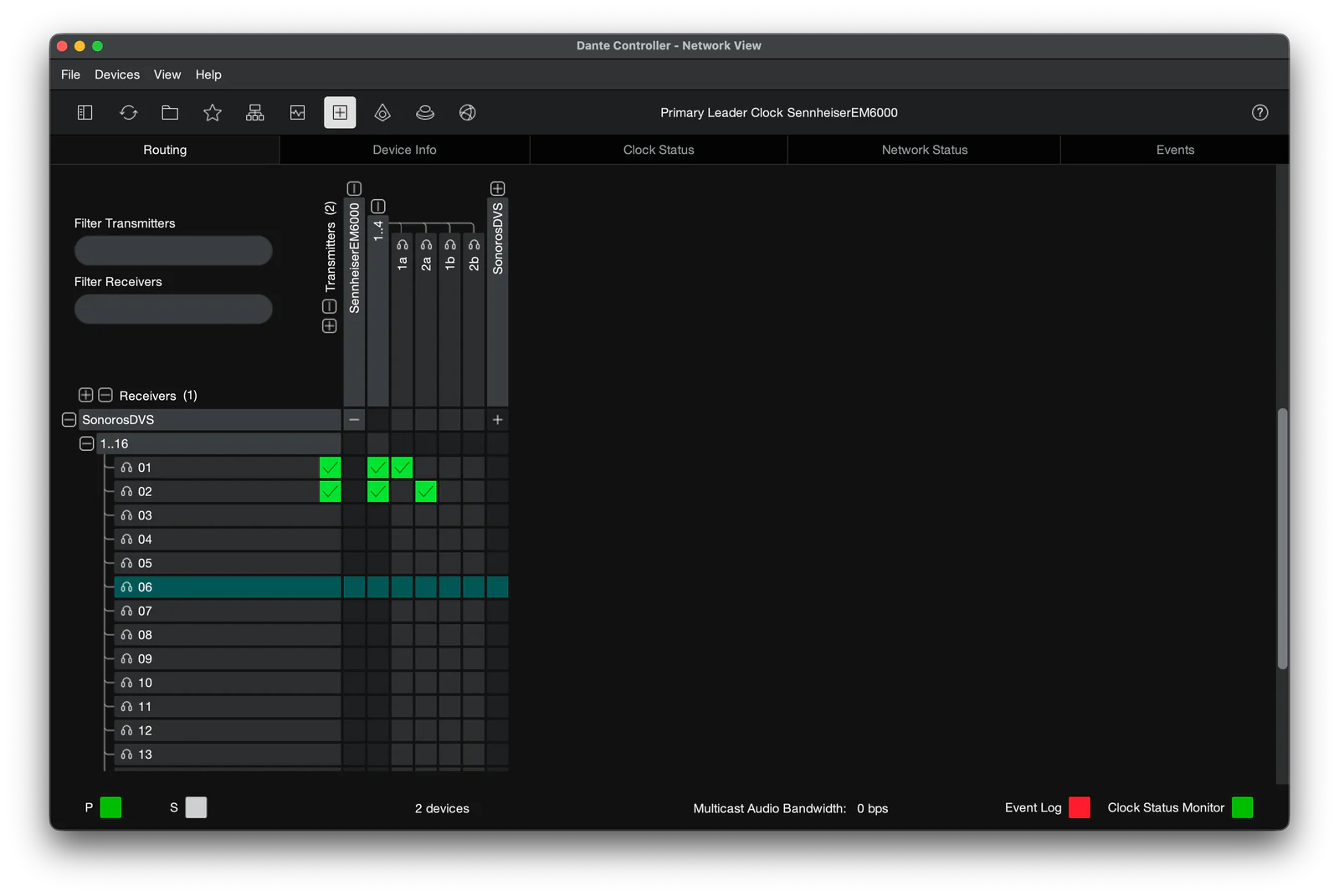
The DVS channel numbers in Dante Controller correspond directly to the input channel numbers in Sonoros. If you route a transmitter to DVS channel 3, that signal arrives on channel 3 in Sonoros. The same applies for audio output to DVS.
DVS must be running before Sonoros uses it
This is the most common issue with Dante setups. If DVS has not finished configuring itself when Sonoros starts, Sonoros will find no channels on that device and you will get no audio.
The fix is straightforward: make sure DVS is started and showing its channels before you open your show in Sonoros, or before you select it as an input device. If you've already opened the show and have no audio, go to Setup > General, click Reset in the Audio Monitoring Settings section, and confirm DVS is running before clicking Apply again.
This article covers getting Dante Virtual Soundcard working as an audio input for Sonoros.
What you need
Dante Virtual Soundcard (DVS) installed on your Sonoros server Mac. DVS is available from Audinate. A DVS licence is required.
Dante Controller installed on any machine with network access to your Dante network.
1. Start Dante Virtual Soundcard
Open Dante Virtual Soundcard and start it. Before starting, set the number of channels you want available.
Tip: The channel count you set here determines how many channels appear in Sonoros. If you set DVS to 64 channels, you will see 64 input channels when you select it as your audio device in Sonoros.
2. Select DVS as your input and/or output device in Sonoros
In Sonoros, open Setup > General and scroll to Audio Monitoring Settings.
You can use DVS as your input, your output, both, or neither: set whichever combination suits your setup.
Set your Input Device to Dante Virtual Soundcard to bring Dante audio into Sonoros for monitoring. The channel count you configured in DVS determines how many input channels are available.
Set your Output Device to Dante Virtual Soundcard to route Sonoros audio back onto the Dante network. This is useful for master monitoring (sending your currently-listened channel out to a Dante destination) and for audio mirroring on Pro and Enterprise licences, where a client's monitored audio is routed to a physical output on the server.
Click Apply when done.
See Audio Monitoring and Streaming for more on assigning input channels to your devices and configuring audio mirroring.
3. Route channels in Dante Controller
Open Dante Controller. The transmit channels from your Dante devices appear as rows in the routing matrix, and the DVS receive channels appear as columns. Click the intersections to route transmit channels to DVS inputs.
The DVS channel numbers in Dante Controller correspond directly to the input channel numbers in Sonoros. If you route a transmitter to DVS channel 3, that signal arrives on channel 3 in Sonoros. The same applies for audio output to DVS.
DVS must be running before Sonoros uses it
This is the most common issue with Dante setups. If DVS has not finished configuring itself when Sonoros starts, Sonoros will find no channels on that device and you will get no audio.
The fix is straightforward: make sure DVS is started and showing its channels before you open your show in Sonoros, or before you select it as an input device. If you've already opened the show and have no audio, go to Setup > General, click Reset in the Audio Monitoring Settings section, and confirm DVS is running before clicking Apply again.