
Wiki
Wiki
Making Patches
Making Patches
This article assumes you have a show set up with Sonoros channels, a routing device connected, and your normalled routing configured in Setup > Routing. If you have not done that yet, see Setting Up a Routing Device.
Making a patch from the monitoring view
The primary way to make patches during a show is from the monitoring view. Select a channel, then click Routing in the inspector tabs. This opens the routing pane for that channel.
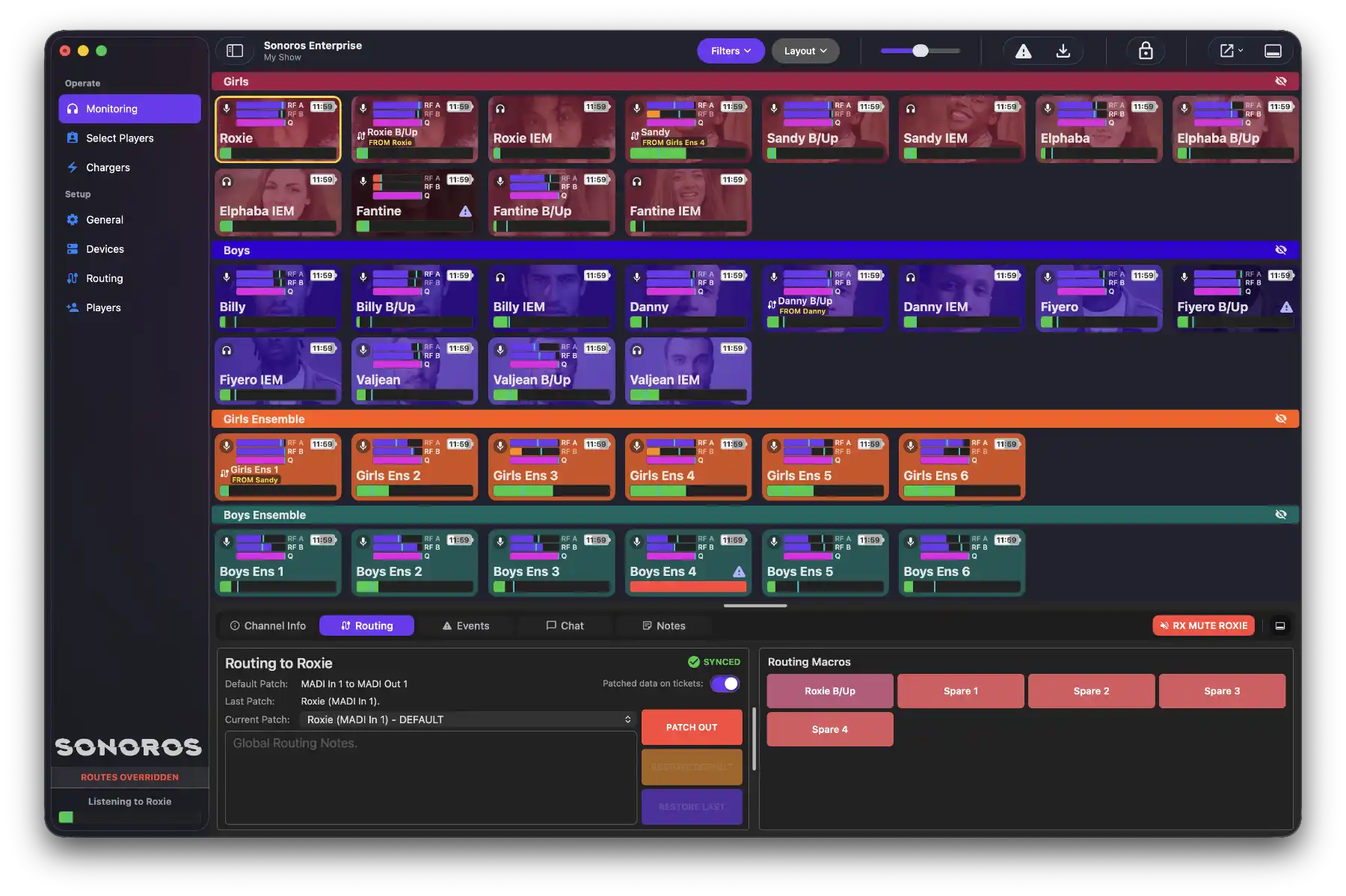
If you have set up routing macros or spares for this channel, they appear here as quick-access buttons. Click one to apply that patch immediately. If you have not set them up yet, see Setting Up a Routing Device.
The default patch shown is the normalled route for this channel. The last patch is the previous state before the most recent change.
Action buttons
RESTORE DEFAULT restores the channel to its normalled route.
RESTORE LAST steps back to the previous patch. This is only available after two or more changes have been made away from the default, giving you a one-step undo before restoring to default.
PATCH OUT disconnects the channel entirely, removing it from the routing device output. When active, the button shows PATCHED OUT.
Patching to an arbitrary channel
Use the dropdown in the routing pane to patch this channel over to any other Sonoros channel, not just the ones you have pre-configured as macros or spares.
Patched data on tickets
The Patched data on tickets toggle controls whether the metering and data shown on channel tickets comes from the original channel or the patched source. This is a global setting and applies to all channels at once.
Global routing notes
The Global Routing Notes field is a free-text area for notes that apply across all channels, such as which spares are in use or any routing changes made during the show.
Patching from Setup > Routing
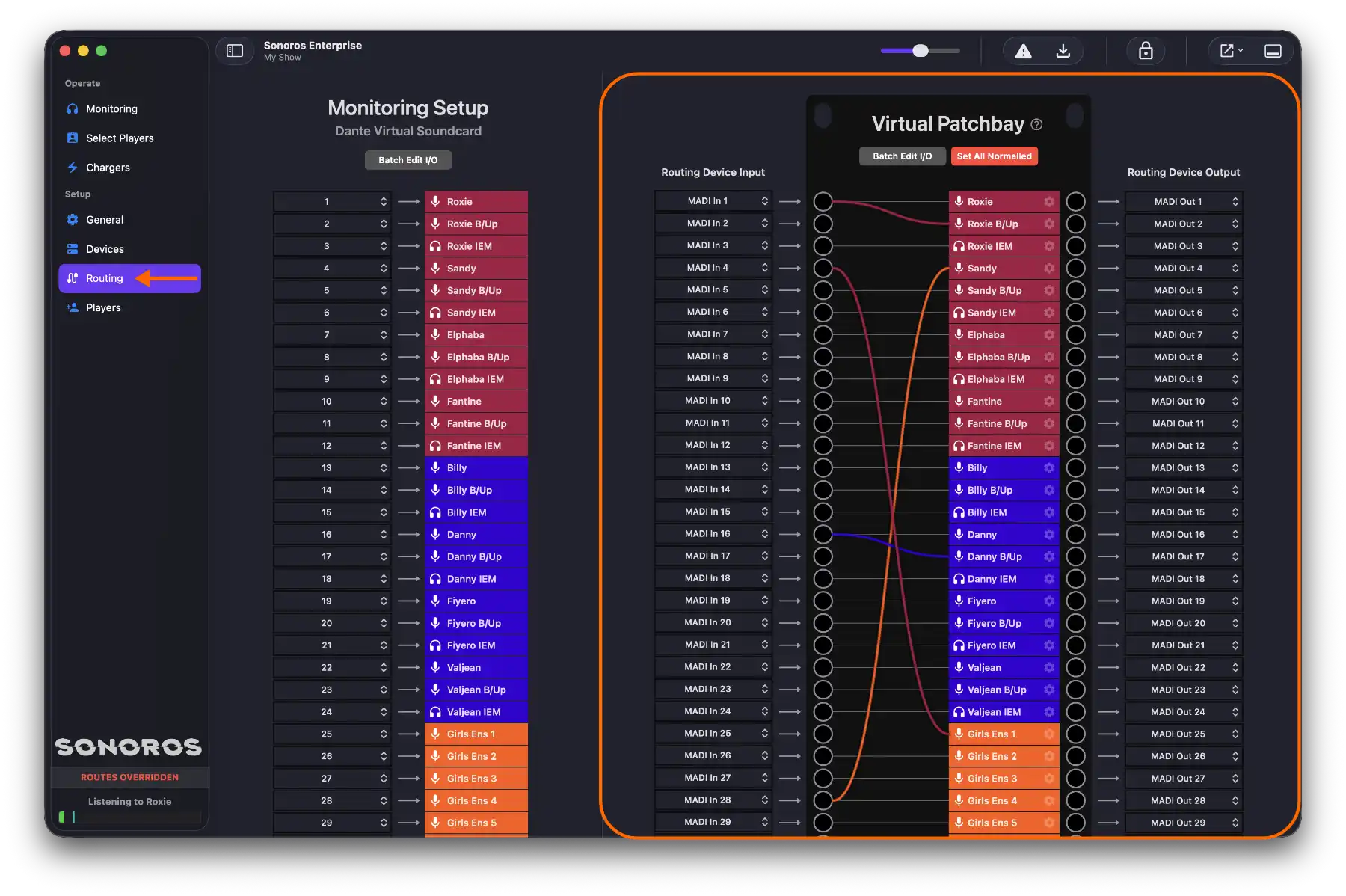
Setup > Routing gives you an overview of all channels and their current routing state. You can also make patches directly here by clicking an input or output circle on a channel and connecting it to another.
One input can be sent to multiple outputs. An output can only be sourced from one input. Both the routing inspector and Setup > Routing show the same underlying state, so changes made in either place are reflected in both.
This article assumes you have a show set up with Sonoros channels, a routing device connected, and your normalled routing configured in Setup > Routing. If you have not done that yet, see Setting Up a Routing Device.
Making a patch from the monitoring view
The primary way to make patches during a show is from the monitoring view. Select a channel, then click Routing in the inspector tabs. This opens the routing pane for that channel.
If you have set up routing macros or spares for this channel, they appear here as quick-access buttons. Click one to apply that patch immediately. If you have not set them up yet, see Setting Up a Routing Device.
The default patch shown is the normalled route for this channel. The last patch is the previous state before the most recent change.
Action buttons
RESTORE DEFAULT restores the channel to its normalled route.
RESTORE LAST steps back to the previous patch. This is only available after two or more changes have been made away from the default, giving you a one-step undo before restoring to default.
PATCH OUT disconnects the channel entirely, removing it from the routing device output. When active, the button shows PATCHED OUT.
Patching to an arbitrary channel
Use the dropdown in the routing pane to patch this channel over to any other Sonoros channel, not just the ones you have pre-configured as macros or spares.
Patched data on tickets
The Patched data on tickets toggle controls whether the metering and data shown on channel tickets comes from the original channel or the patched source. This is a global setting and applies to all channels at once.
Global routing notes
The Global Routing Notes field is a free-text area for notes that apply across all channels, such as which spares are in use or any routing changes made during the show.
Patching from Setup > Routing
Setup > Routing gives you an overview of all channels and their current routing state. You can also make patches directly here by clicking an input or output circle on a channel and connecting it to another.
One input can be sent to multiple outputs. An output can only be sourced from one input. Both the routing inspector and Setup > Routing show the same underlying state, so changes made in either place are reflected in both.