
Wiki
Wiki
Troubleshooting Audio & Networking
Troubleshooting Audio & Networking
Sonoros can't talk to my receiver
The quickest check is to ping the receiver's IP address from Terminal. If it responds, Sonoros should be able to reach it.
ping 192.168.1.x
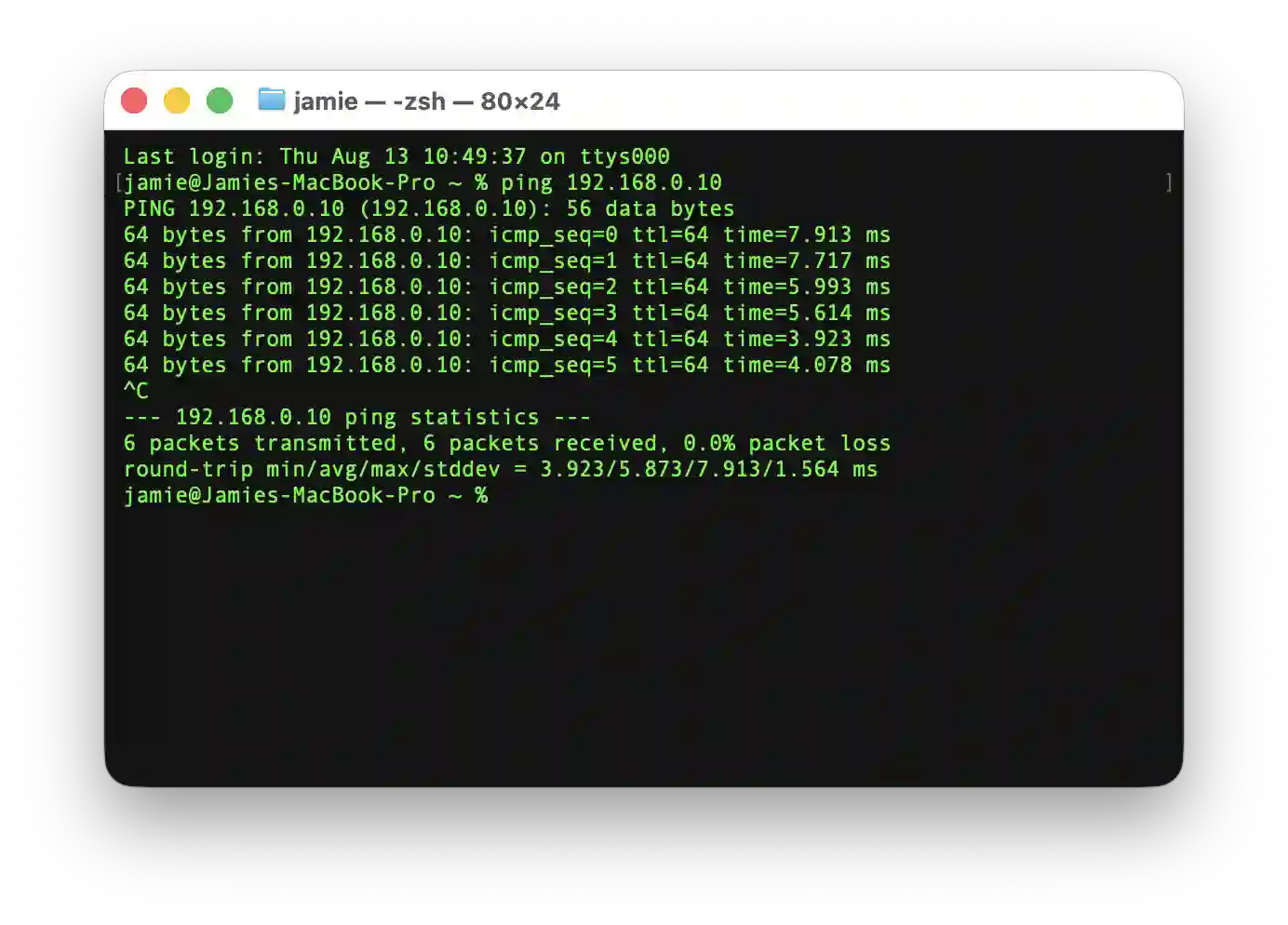
If the ping fails, the issue is at the network level and not specific to Sonoros. Check that the receiver is powered on, connected to the same network, and that no firewall is blocking ICMP.
Sennheiser G3 receivers can occasionally be flaky over network control. They behave more reliably with a manually assigned IP address rather than DHCP. If a G3 device is intermittently dropping out or not responding, set a static IP on the receiver and update it in Sonoros, then restart both if needed.
Sennheiser EWDX receivers must be in legacy mode to work with Sonoros. If an EWDX device is not appearing or connecting, check the mode in the receiver's settings first.
Shure receivers need Controller Access enabled and set to Read/Write before Sonoros can talk to them fully, including editing parameters. Like EWDX above, this may ship locked by default; it's a receiver-level network setting, occasionally labelled "local controller access." If a Shure receiver won't connect or won't update in Sonoros, check this alongside the ping test above.
When in doubt, restarting both the receiver and the Mac running Sonoros is a good first step for any device connectivity issue.
Clients cannot see the server, or the connection is unstable
Sonoros discovers servers using mDNS (Bonjour). If a client cannot see the server in the list of shows, mDNS traffic between the two machines is being blocked. This is common on networks with VLANs or firewalls that filter multicast traffic. Ensure mDNS is permitted between the client and server subnets.
If the server appears in the list but the connection is unstable or shows as reconnecting, mDNS discovery worked but the TCP link between client and server is breaking down. This is a general network issue rather than a Sonoros one. Check for packet loss, unstable Wi-Fi, or firewall rules that drop established connections.
Sonoros traffic is low, so the connection does not need much bandwidth. Ethernet to the endpoint is recommended where practical, but Wi-Fi will work fine on a stable network.
No audio in Sonoros
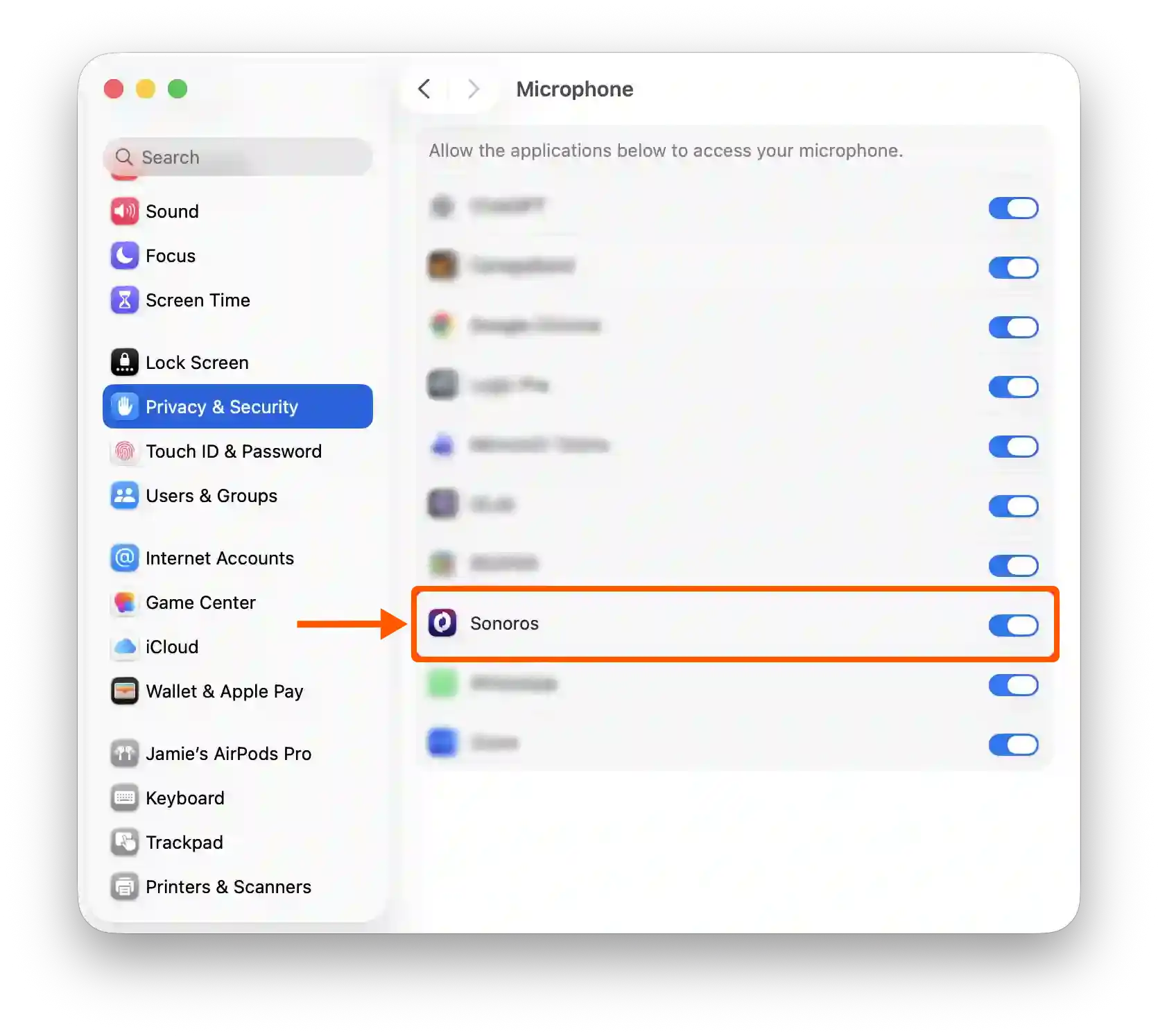
If Sonoros is not playing audio from a selected channel, it may not have microphone access.
Go to Setup > Show Settings and click Request Permissions. If macOS has already denied access, Sonoros will prompt you to open System Settings. Click Show Settings and enable microphone access for Sonoros under Privacy & Security.
Dante / DVS not working
Dante Virtual Soundcard must be running before Sonoros launches. If you start Sonoros first and then start DVS, the Dante audio connection will not be established. Restart Sonoros after DVS is running.
For full setup instructions, see the Dante Virtual Soundcard article.
If you have an issue that is not covered here, get in touch and we will help.
Sonoros can't talk to my receiver
The quickest check is to ping the receiver's IP address from Terminal. If it responds, Sonoros should be able to reach it.
ping 192.168.1.x
If the ping fails, the issue is at the network level and not specific to Sonoros. Check that the receiver is powered on, connected to the same network, and that no firewall is blocking ICMP.
Sennheiser G3 receivers can occasionally be flaky over network control. They behave more reliably with a manually assigned IP address rather than DHCP. If a G3 device is intermittently dropping out or not responding, set a static IP on the receiver and update it in Sonoros, then restart both if needed.
Sennheiser EWDX receivers must be in legacy mode to work with Sonoros. If an EWDX device is not appearing or connecting, check the mode in the receiver's settings first.
Shure receivers need Controller Access enabled and set to Read/Write before Sonoros can talk to them fully, including editing parameters. Like EWDX above, this may ship locked by default; it's a receiver-level network setting, occasionally labelled "local controller access." If a Shure receiver won't connect or won't update in Sonoros, check this alongside the ping test above.
When in doubt, restarting both the receiver and the Mac running Sonoros is a good first step for any device connectivity issue.
Clients cannot see the server, or the connection is unstable
Sonoros discovers servers using mDNS (Bonjour). If a client cannot see the server in the list of shows, mDNS traffic between the two machines is being blocked. This is common on networks with VLANs or firewalls that filter multicast traffic. Ensure mDNS is permitted between the client and server subnets.
If the server appears in the list but the connection is unstable or shows as reconnecting, mDNS discovery worked but the TCP link between client and server is breaking down. This is a general network issue rather than a Sonoros one. Check for packet loss, unstable Wi-Fi, or firewall rules that drop established connections.
Sonoros traffic is low, so the connection does not need much bandwidth. Ethernet to the endpoint is recommended where practical, but Wi-Fi will work fine on a stable network.
No audio in Sonoros
If Sonoros is not playing audio from a selected channel, it may not have microphone access.
Go to Setup > Show Settings and click Request Permissions. If macOS has already denied access, Sonoros will prompt you to open System Settings. Click Show Settings and enable microphone access for Sonoros under Privacy & Security.
Dante / DVS not working
Dante Virtual Soundcard must be running before Sonoros launches. If you start Sonoros first and then start DVS, the Dante audio connection will not be established. Restart Sonoros after DVS is running.
For full setup instructions, see the Dante Virtual Soundcard article.
If you have an issue that is not covered here, get in touch and we will help.